How to Modify / View Automation Task Status?
更新于 2026-07-15
1. Feature Introduction
TikSales allows users to view task execution status, monitor real-time task progress, and modify or delete scheduled tasks that have not started yet.
Through task management, users can quickly track automation performance, adjust task configurations, and improve operational efficiency.
Applicable Scenarios:
- View real-time automation task status
- Check task execution results and operation logs
- Modify or delete scheduled tasks
2. View Task Execution Status
(1) Real-time Task Monitoring
For running automation tasks, users can view the real-time execution status through the following two methods:
Method 1: View from 【Environment Management】
For Specific view:【Environment Management】 → Click 【Preview】 for the corresponding execution environment → View the real-time task execution screen
For viewing all:【Environment Management】 → Click 【View Running Tasks】 for the corresponding execution environment → View the real-time task execution screen
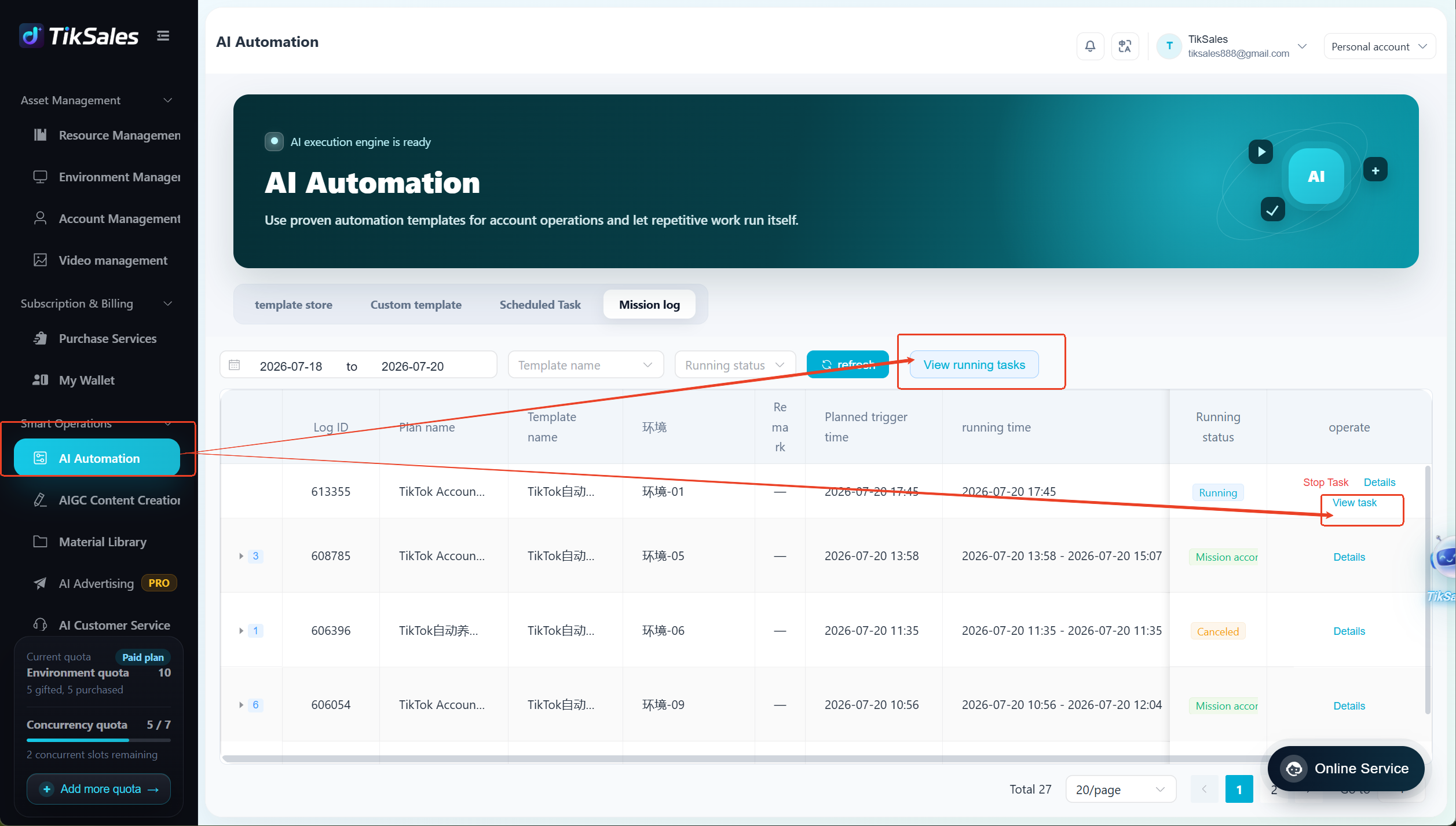
Method 2: View from 【Smart Operations - AI Automation】
Operation Steps:【Smart Operations - AI Automation】 → 【Mission Log】 → Click 【View Task】 → View task execution details
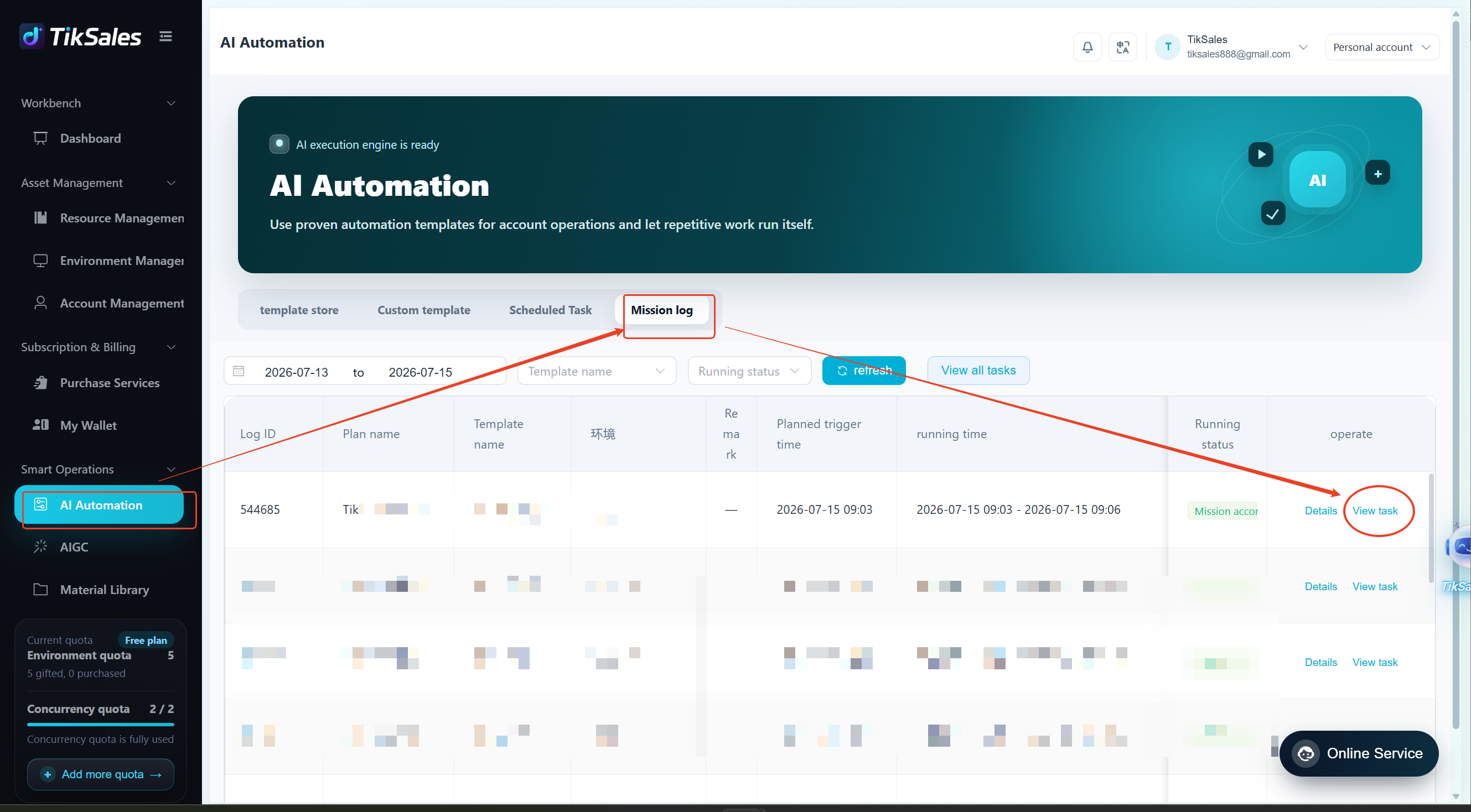
(2)View Execution Results
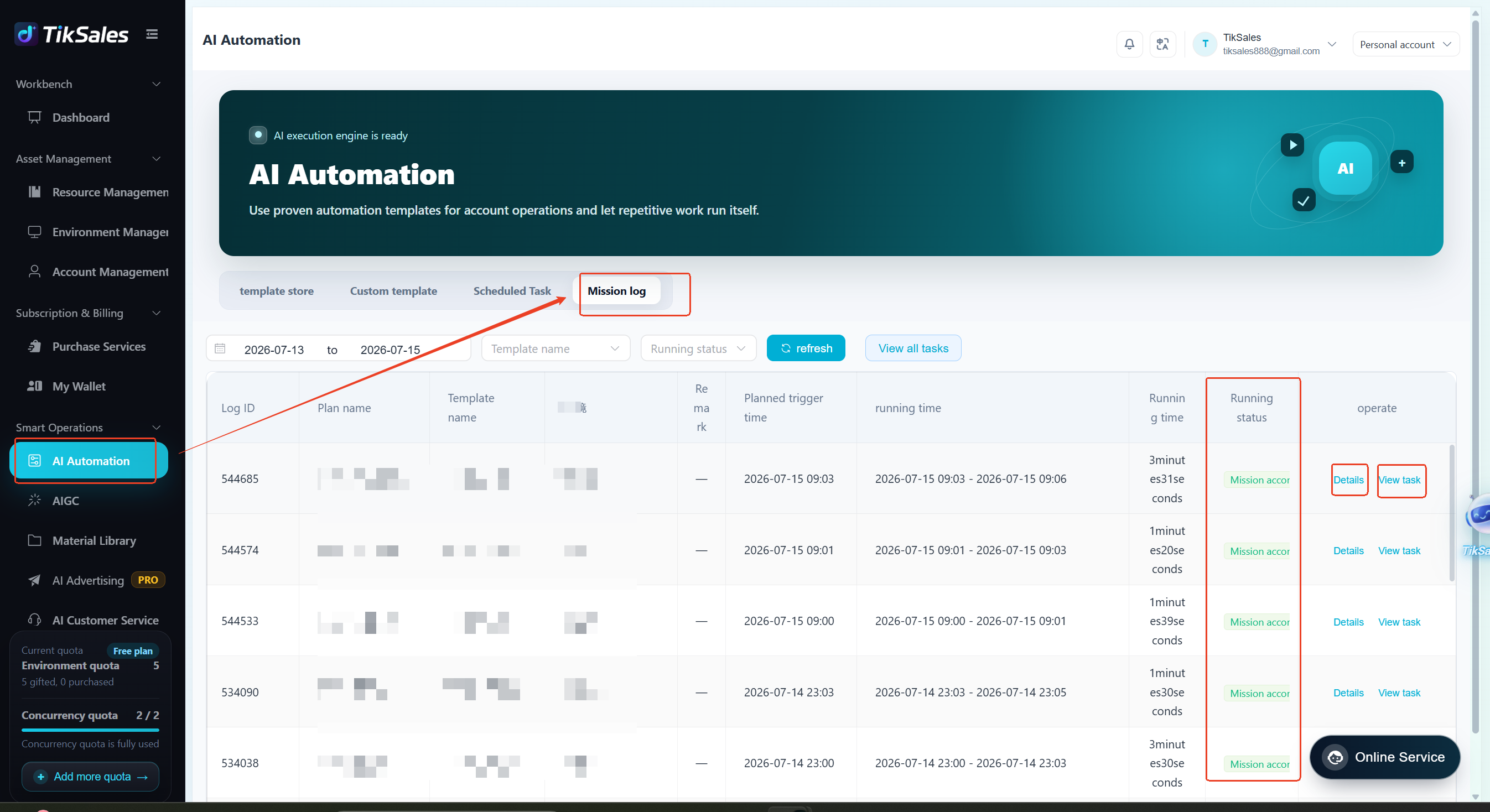
Task execution records can be viewed in Task Logs.
Operation Steps:【Smart Operations】 → 【AI Automation】 → 【Mission Log】
View:
- Task Status
- Execution Results
- Operation Logs (Click 【Detail】)
3. Modify / Delete Scheduled Tasks
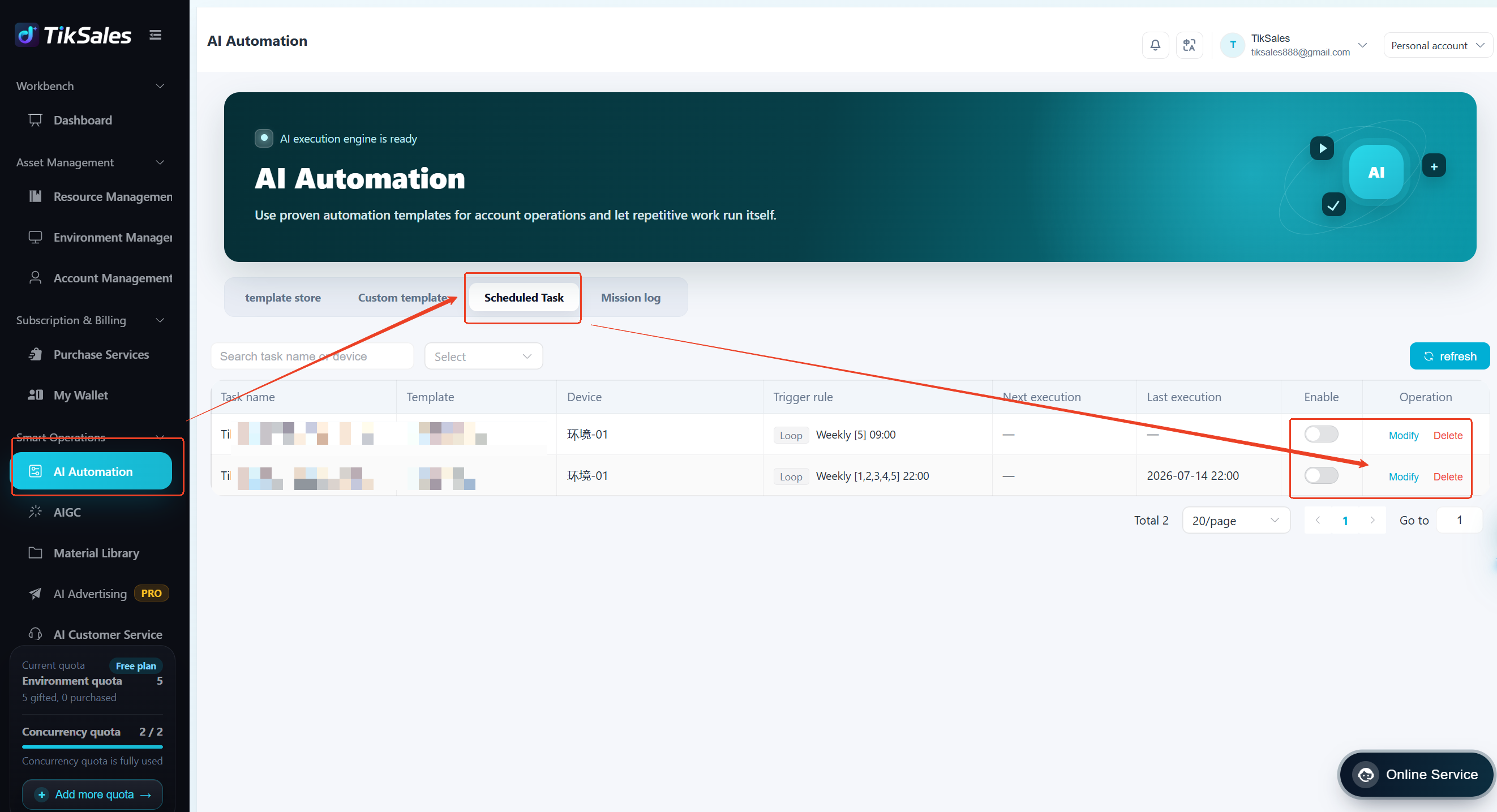
For scheduled tasks that have not started, users can manage them through Scheduled Tasks.
Operation Steps:【Smart Operations】 → 【AI Automation】 → 【Scheduled Task】
Available actions:
- Modify task schedule
- Enable / Delete task