TikSales Combo Task Guide
更新于 2026-07-15
1. What is a Combo Task?
A Combo Task allows multiple automation tasks to be linked and executed sequentially, creating a complete operational workflow.
Example: Login → Edit Profile → Account Warming → Post Photo Album
Execution Logic: Main Task → Sub-task 1 → Sub-task 2 → Sub-task 3
- Main Task: Determines where the workflow starts. The system will execute the Main Task first.
- Sub-tasks: After the Main Task is completed, Sub-tasks will be executed according to the order they are added.
The Main Task determines “where to start”, while Sub-tasks determine “the subsequent execution order.”
2. Important Notes Before Execution
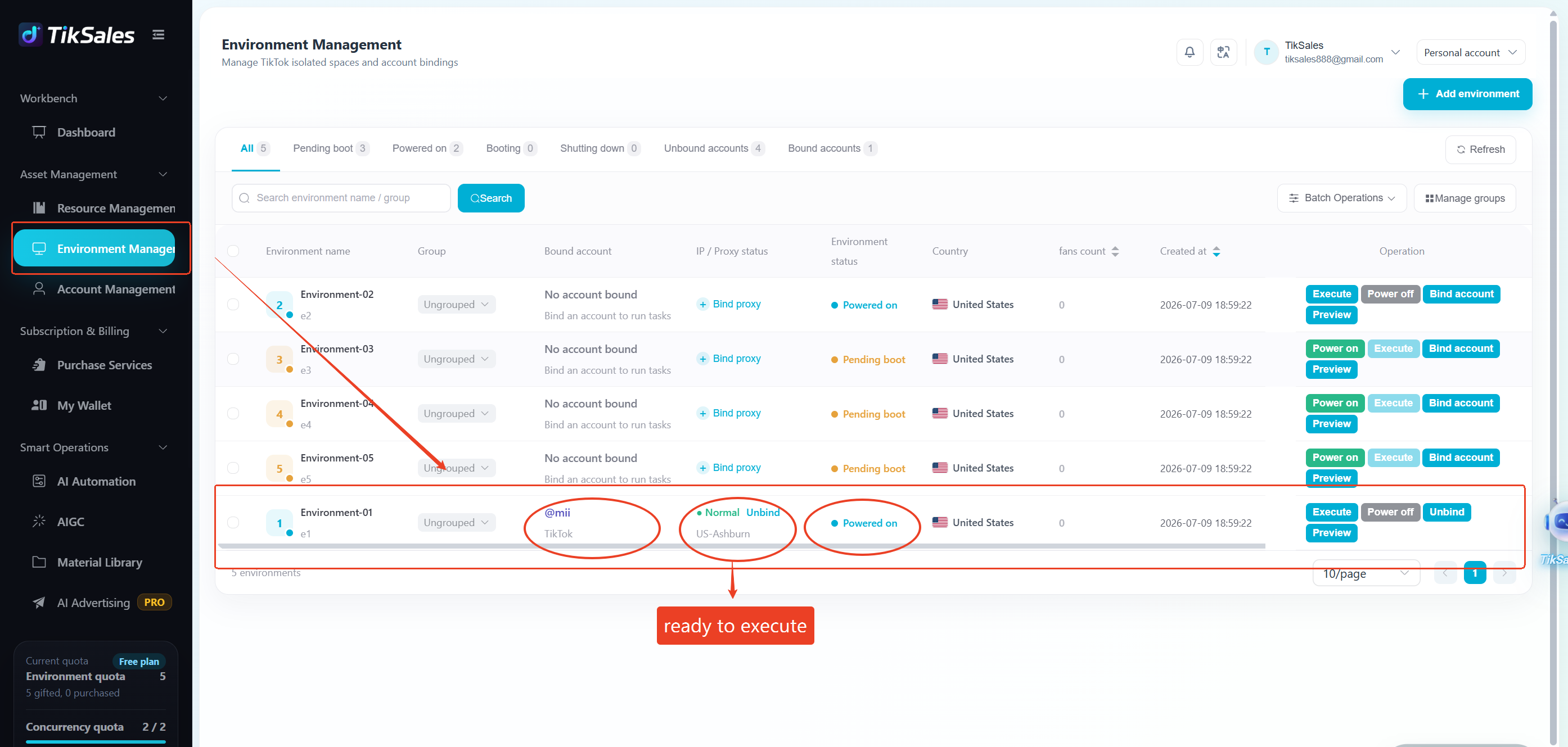
1. Confirm Environment Status
Before running automation tasks, please make sure:
✅ Environment is powered on
✅ Proxy IP is assigned
✅ Account status is normal
2. First-Time Execution Requires Account Login
If the account has not been bound or logged in, the Register/Login task must be set as the Main Task.
Otherwise, subsequent tasks cannot be executed.
3. How to Create a Combo Task
TikSales provides two entry points for creating and executing Combo Tasks.
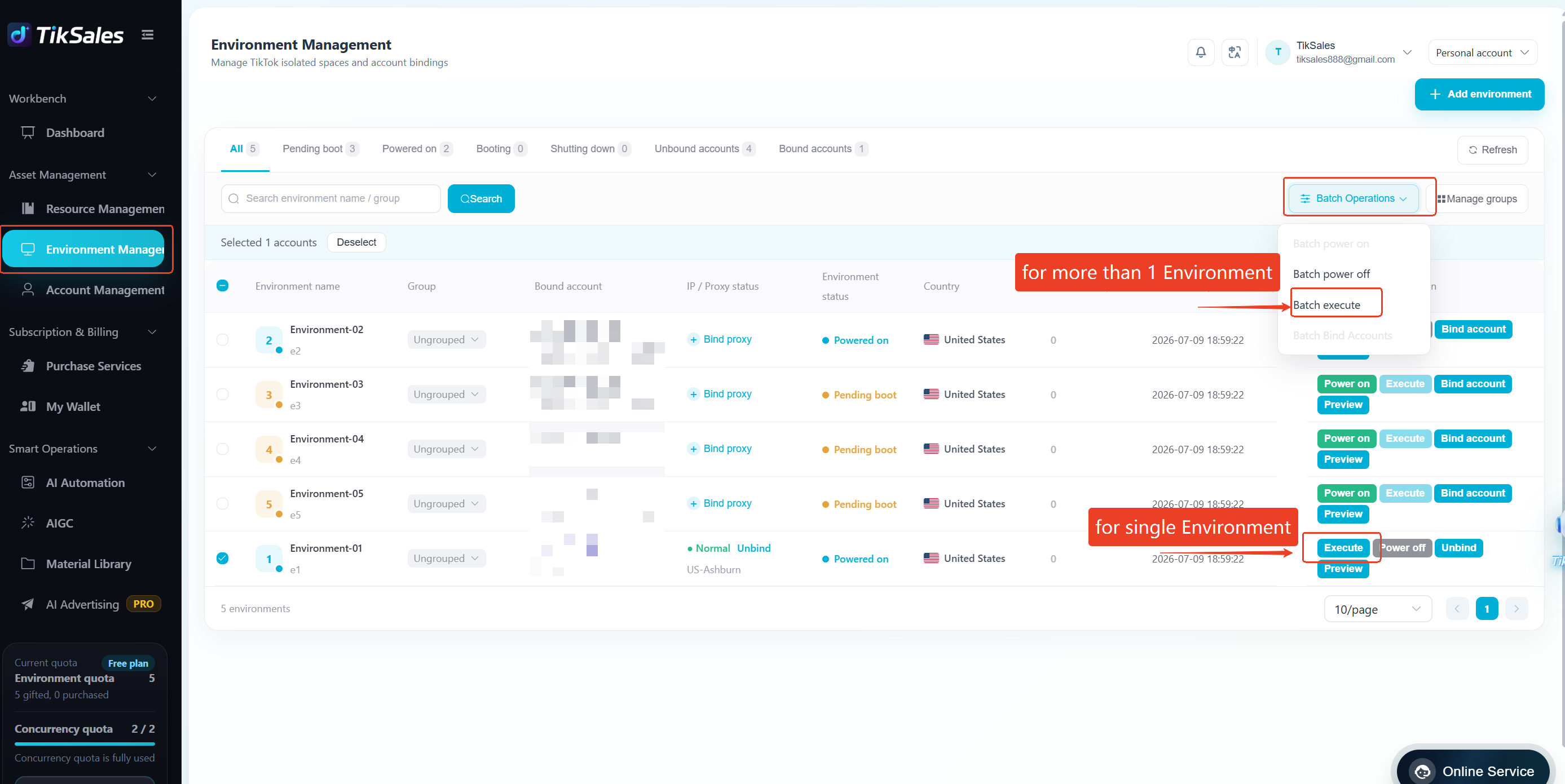
Method 1: Create and Execute from 【Environment Management】
Suitable for: Quickly selecting the account environments and running tasks.
Operation Steps:
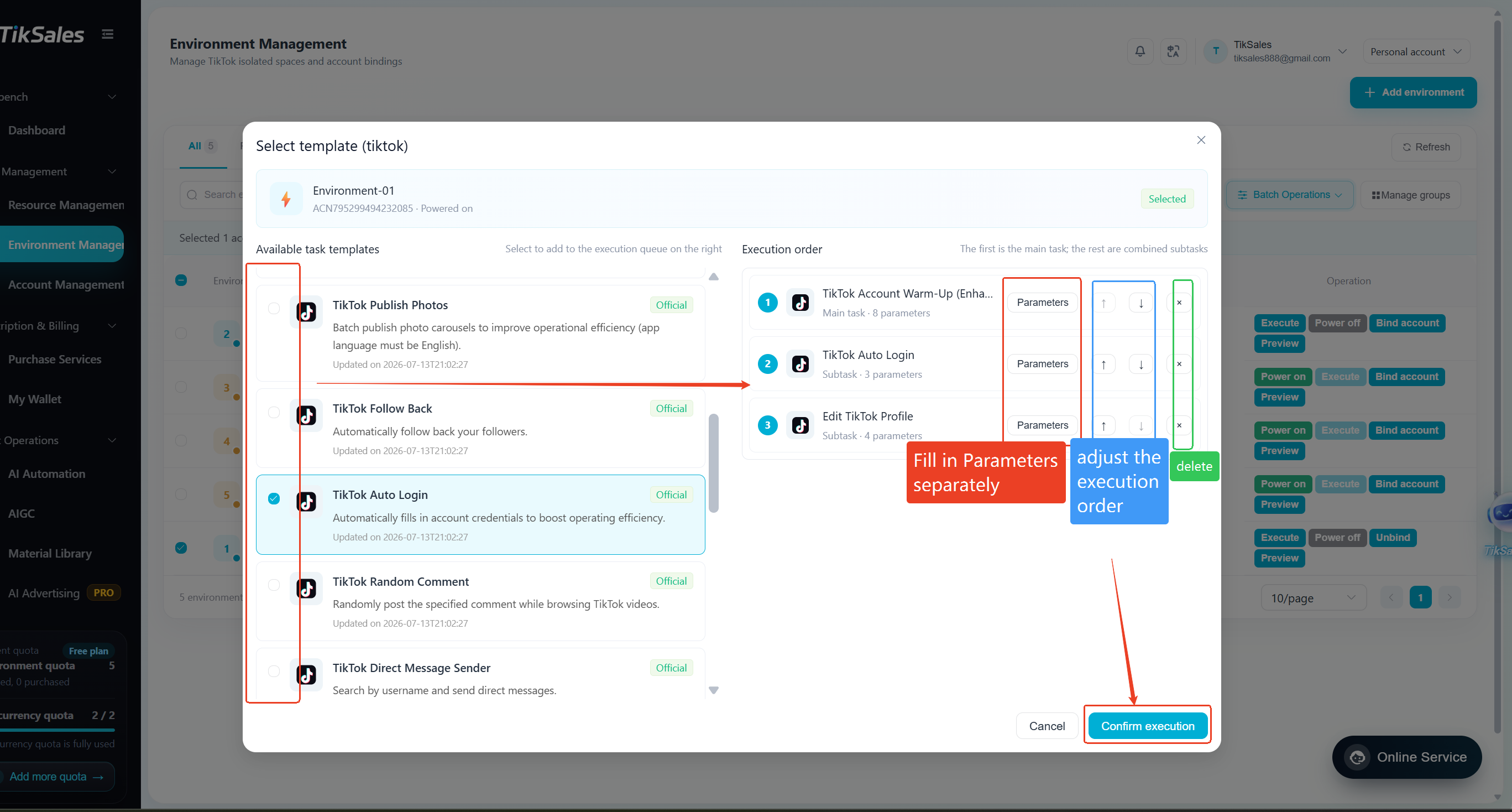
【Environment Management】 → 【Execute】 → Select Task Templates → Fill in Task Parameters Separately→ Adjust Execution Order → Click 【Confirm Execution】
Method 2: Create and Execute from 【Smart Operations】 → 【AI Automation】
Suitable for: Building complete automation workflows.
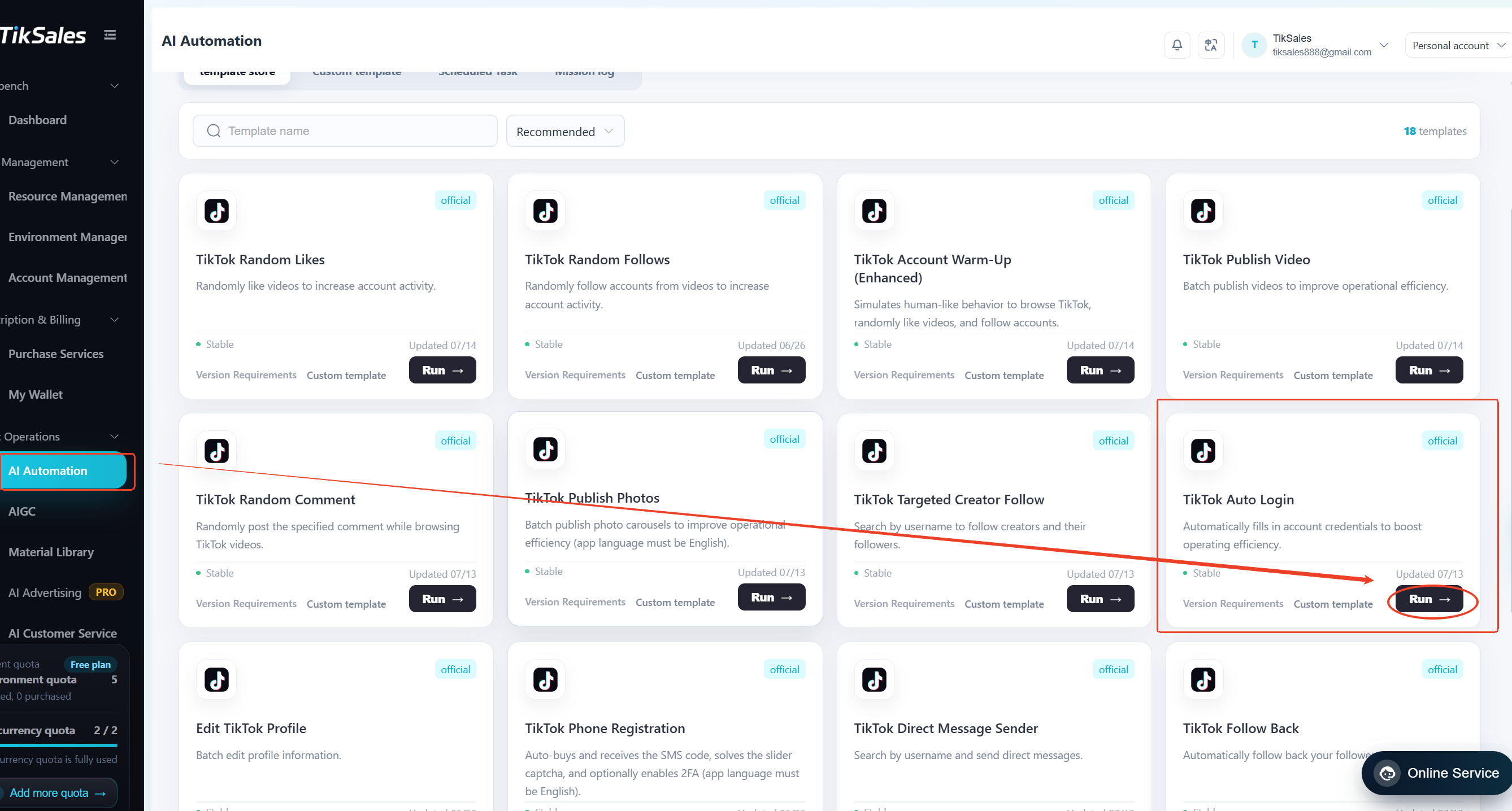
Select Main Task
【Smart Operations】 -【AI Automation】 → Select Main Task → Click 【Run】
Example: Select 【TikTok Auto Login】, then the Main Task = Login
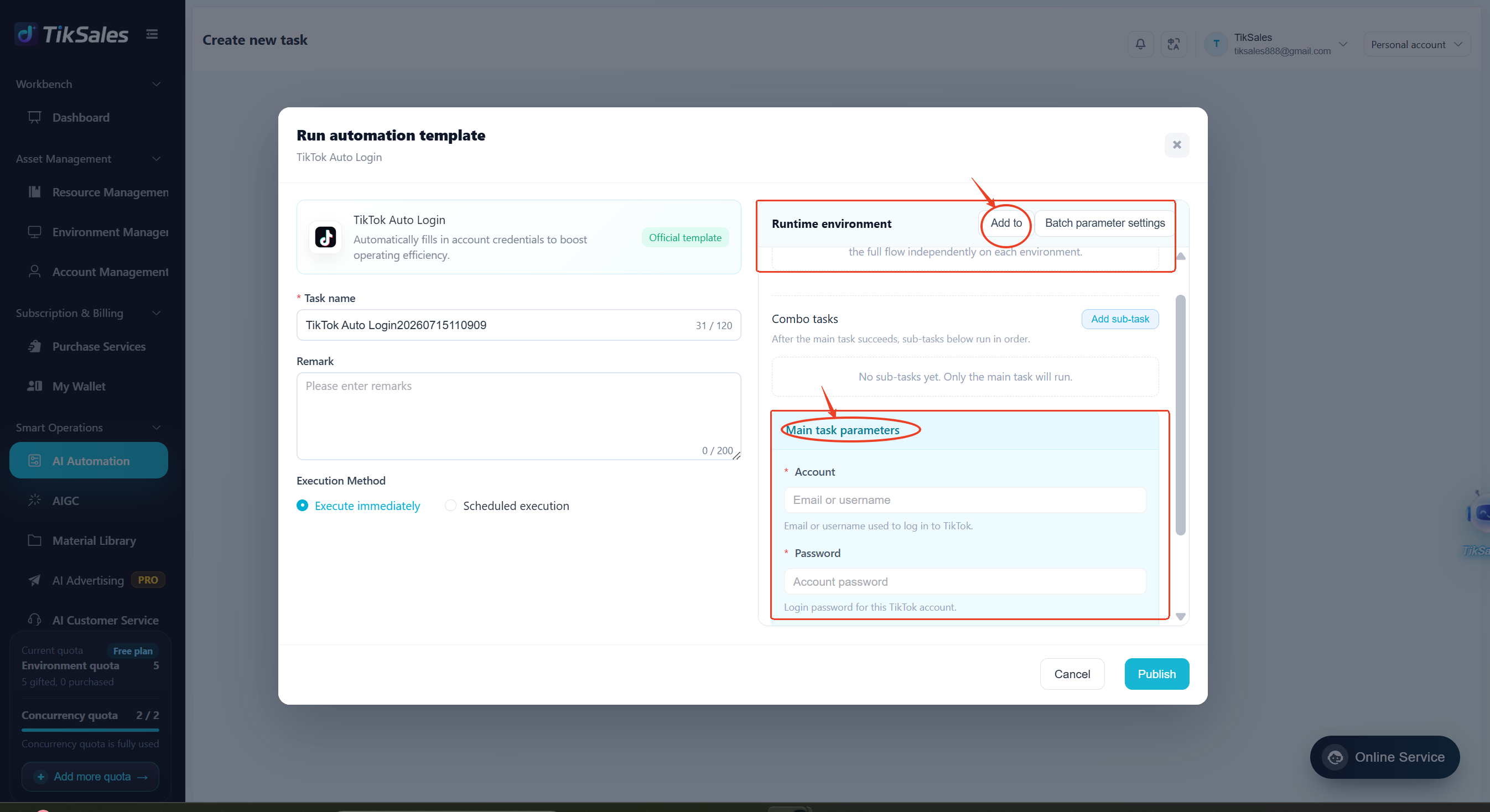
Configure Environment and Main Task Parameters
Add Runtime Environment → Fill in Main Task Parameters
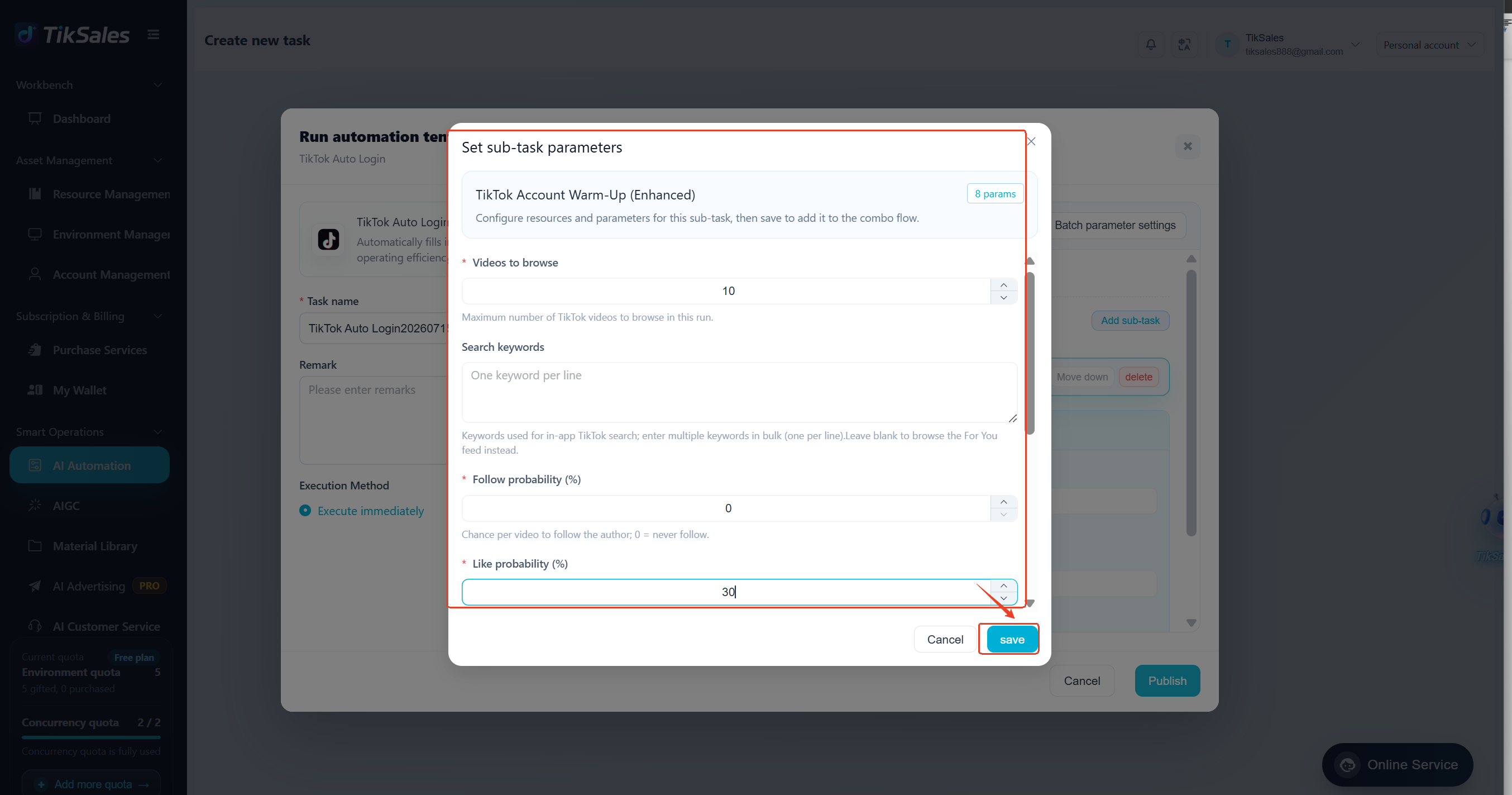
Add Sub-tasks
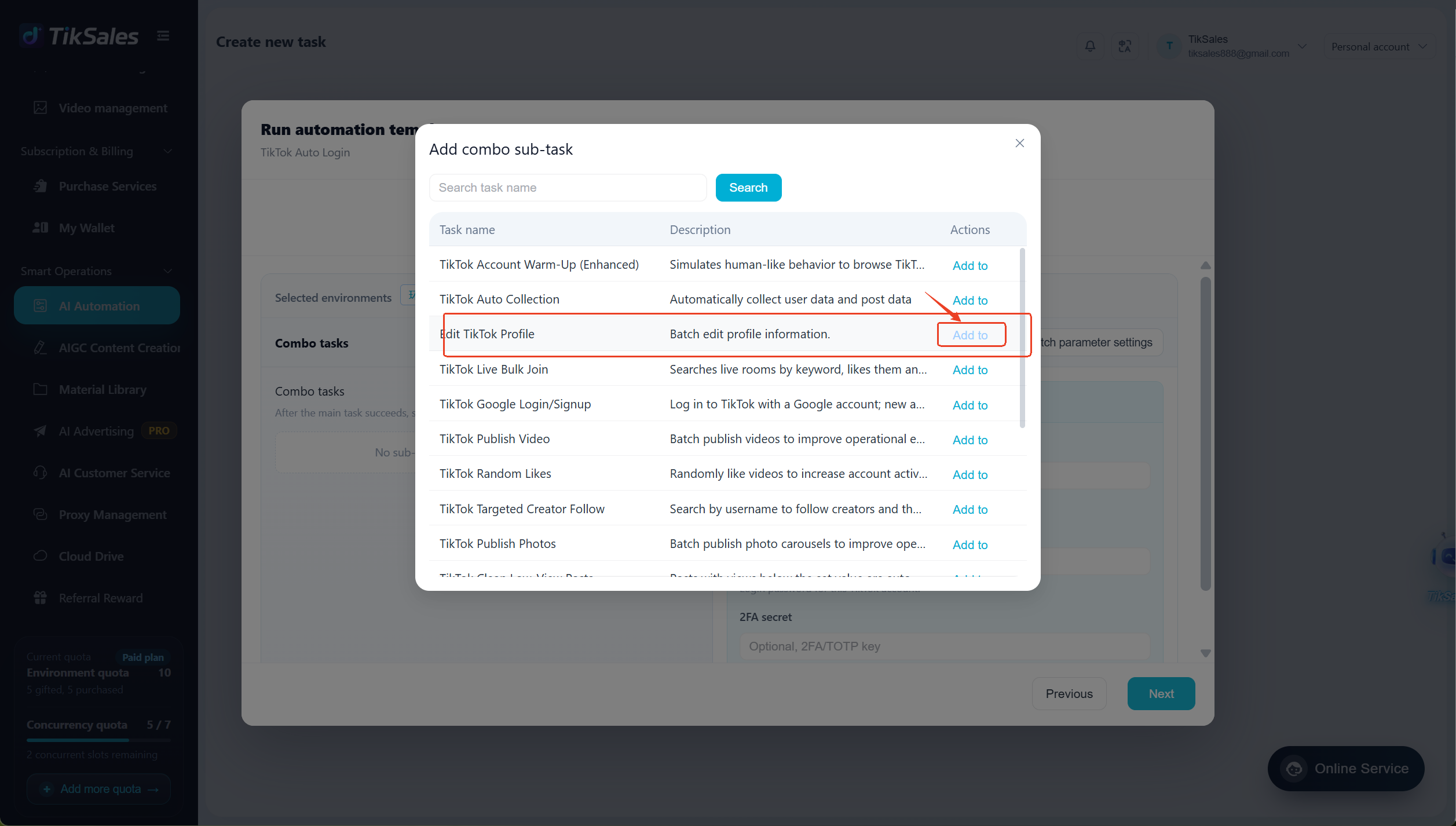
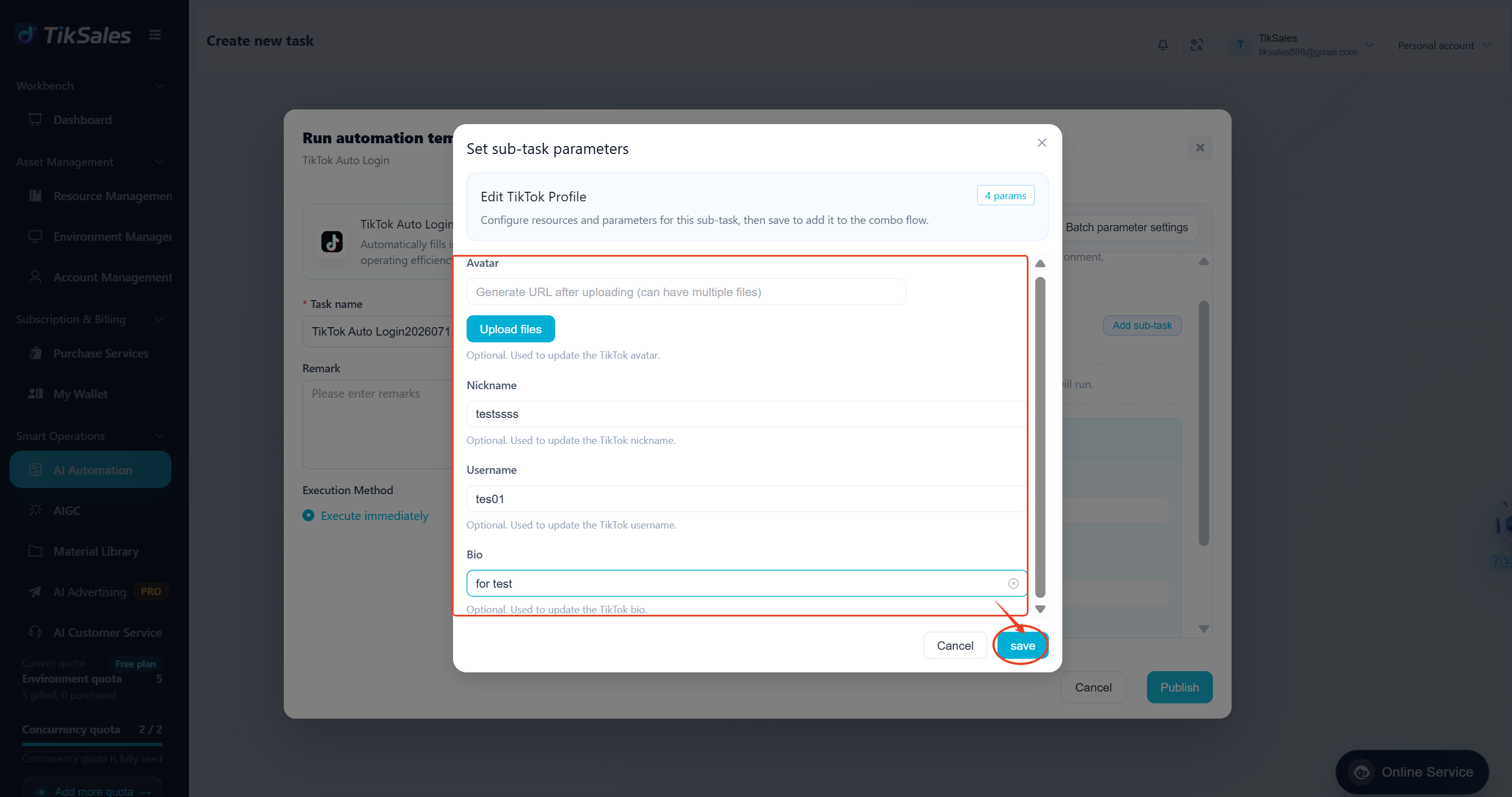
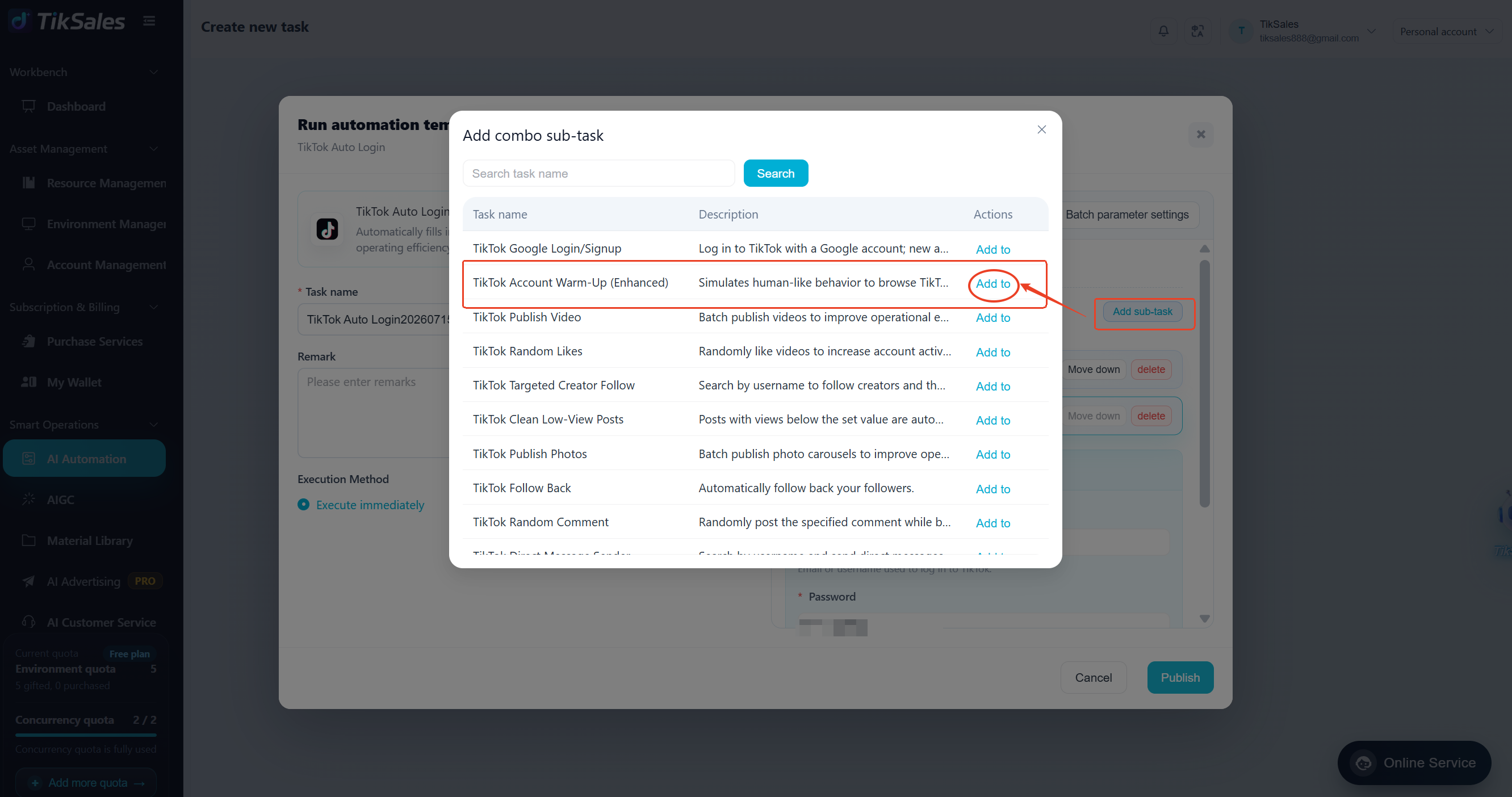
Click 【Add Sub-task】 → Select Follow-up Tasks → Fill in Task Parameters
Example:
Sub-task 1: Edit Profile
Sub-task 2: Account Warming
Publish Task
Complete All Task Configurations → Click 【Next】→ Execution Method→ Click 【Publish】
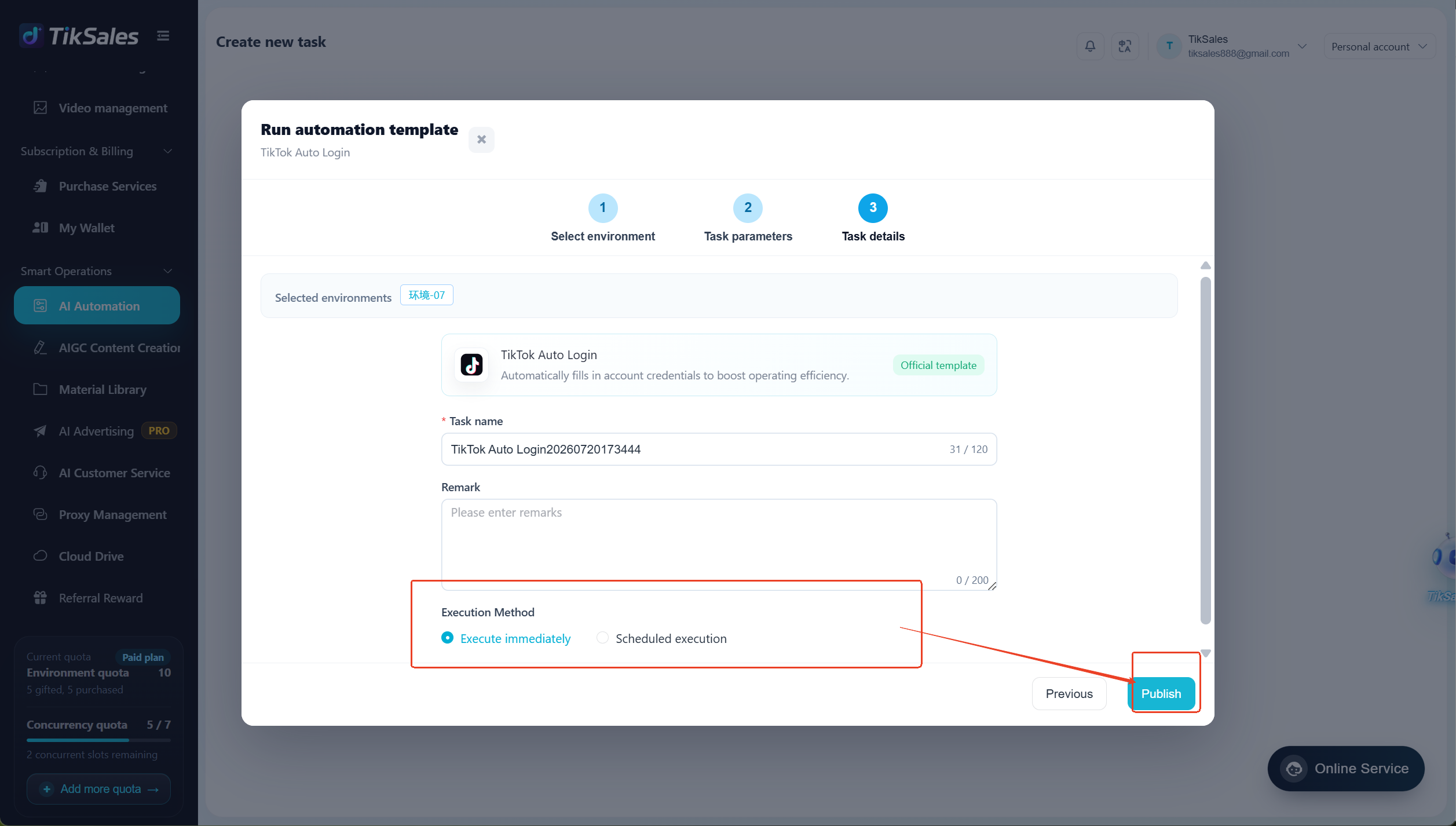
The system will execute tasks according to the configured order: Login → Edit Profile → Account Warming
4. Task Management
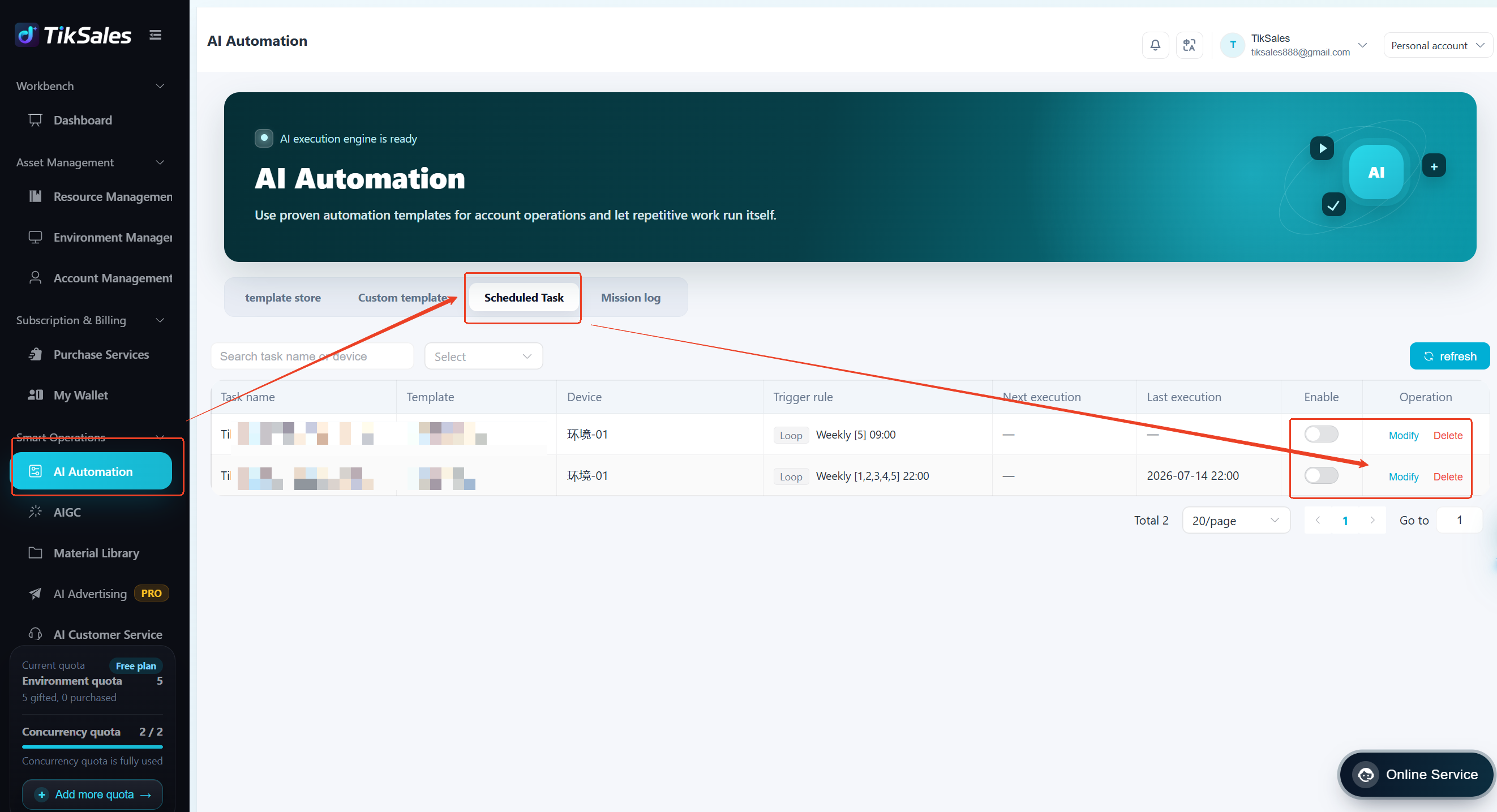
Modify / Delete Scheduled Tasks
For scheduled tasks that have not started:
【AI Automation】 → 【Scheduled Tasks】 → Modify Task Schedule / Delete Task
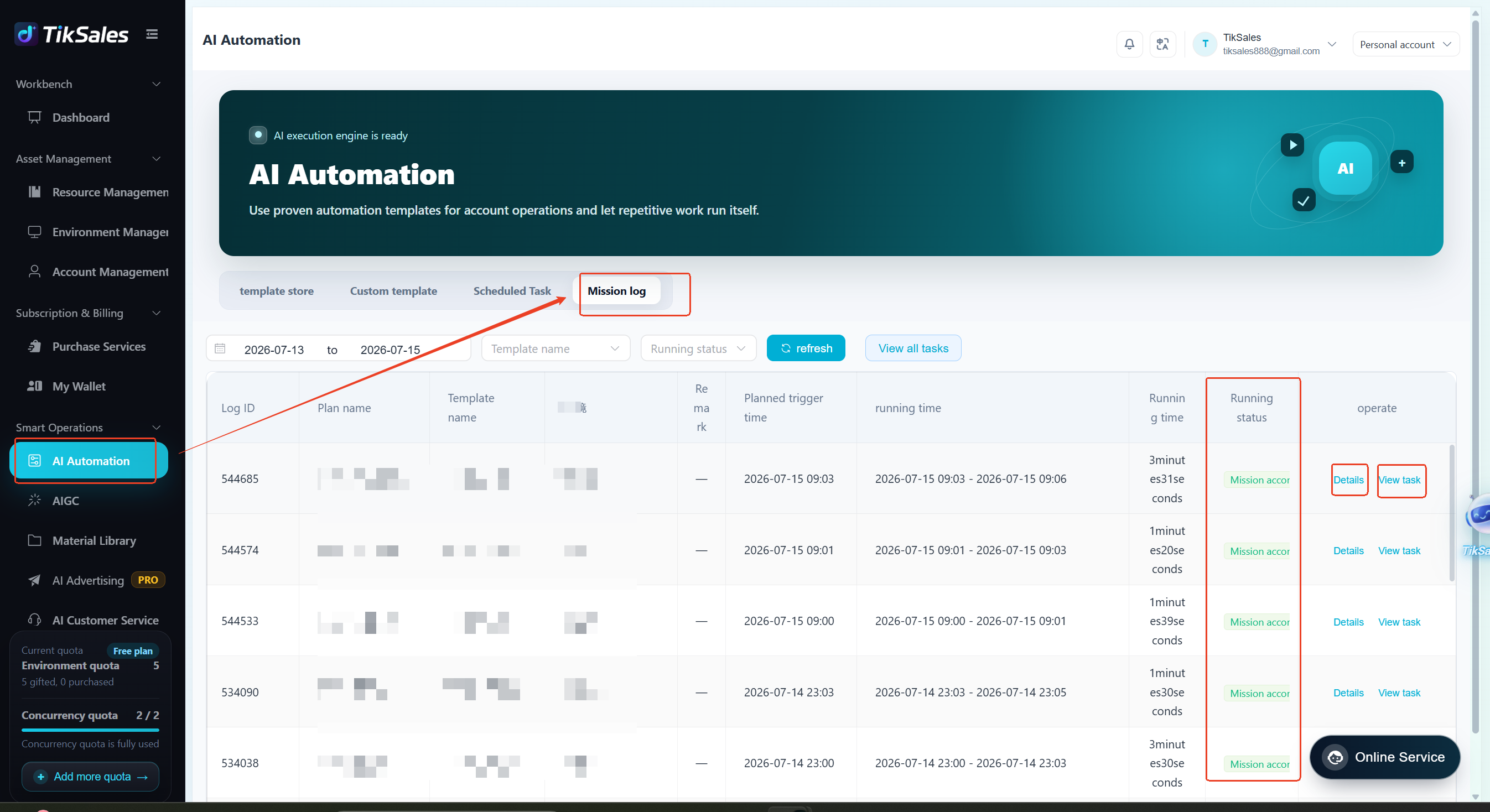
View Execution Records
For running or completed tasks:【AI Automation】 → 【Mission Log】
View:
Running Status (Click 【View task】 to view the specific task execution screen; Click【view running tasks】 to view all the task screen )
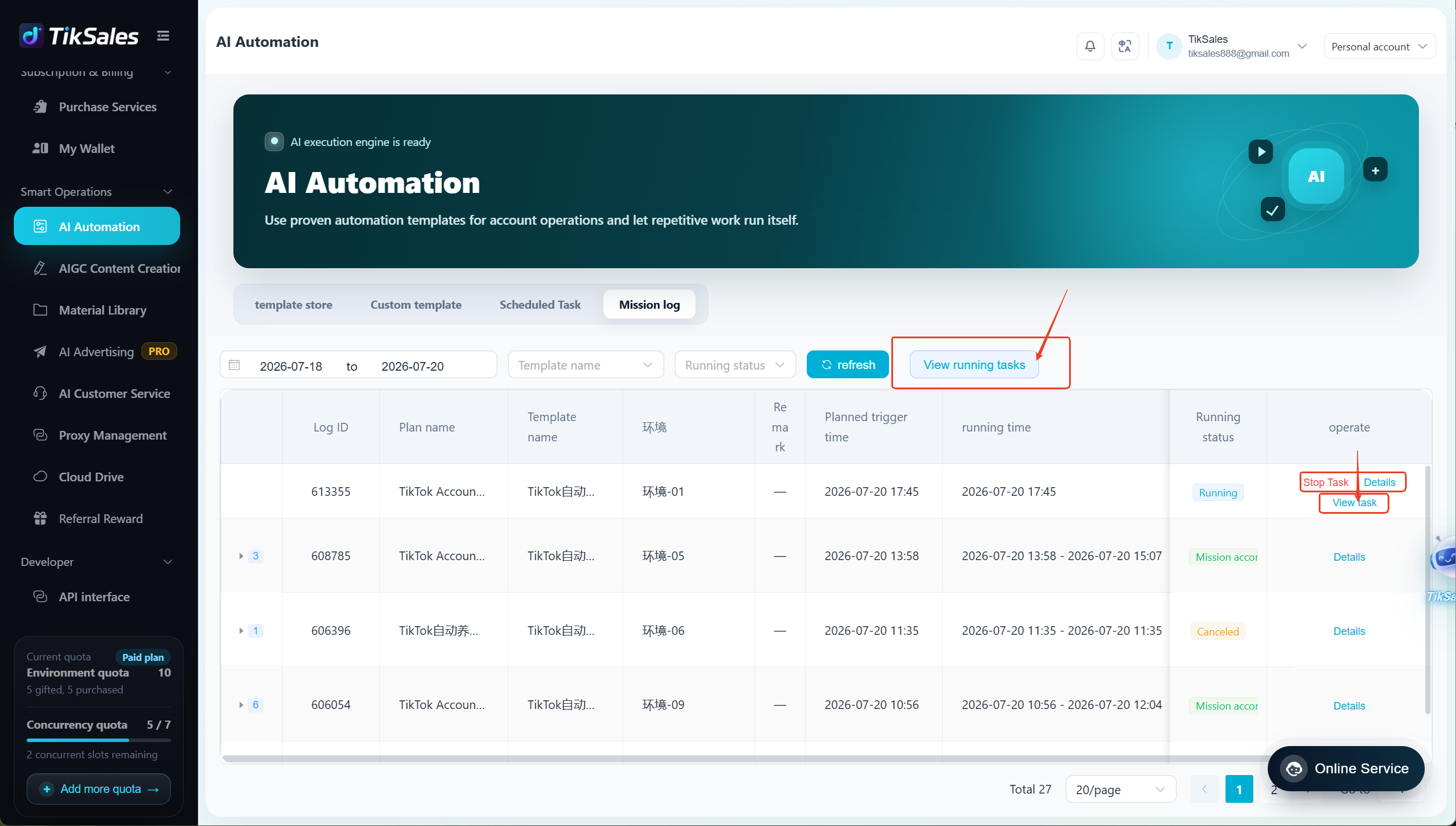
Execution Results
Failure Reasons (Click 【Details】 to view more information).
If you encounter issues, please screenshot the details section and contact TikSales customer support for assistance.
5. Continuous Feature Updates
TikSales automation features are continuously being upgraded.
Future updates will support:
Product Showcase Link Integration
Automated Live Streaming
Multi-platform Automated Operations
More AI Automation Scenarios
For customized automation requirements, please contact the TikSales customer support team ☞ https://www.tiksales.net/help/how-to-contact-customer-support.html.