How to Change or Upgrade the Android System Image?
更新于 2026-09-07
If you need to change the Android system version of a TikSales cloud phone, you can do so through Environment Management.
TikSales supports both single-device upgrades and batch upgrades.
Single Device Upgrade
Go to Environment Management.
Select the device you want to upgrade.
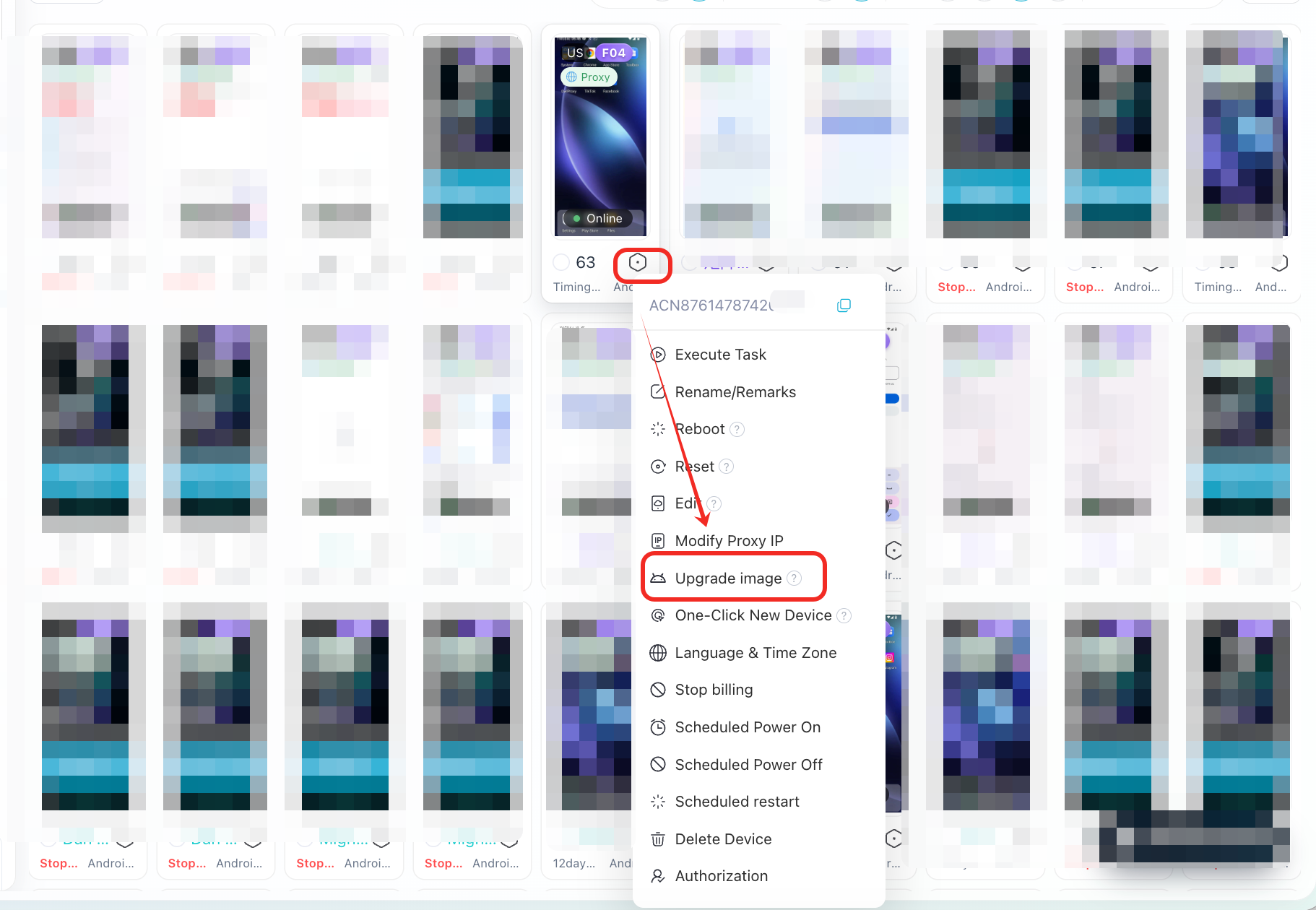
Click the Settings icon in the bottom-right corner of the device.
Select Upgrade Image.
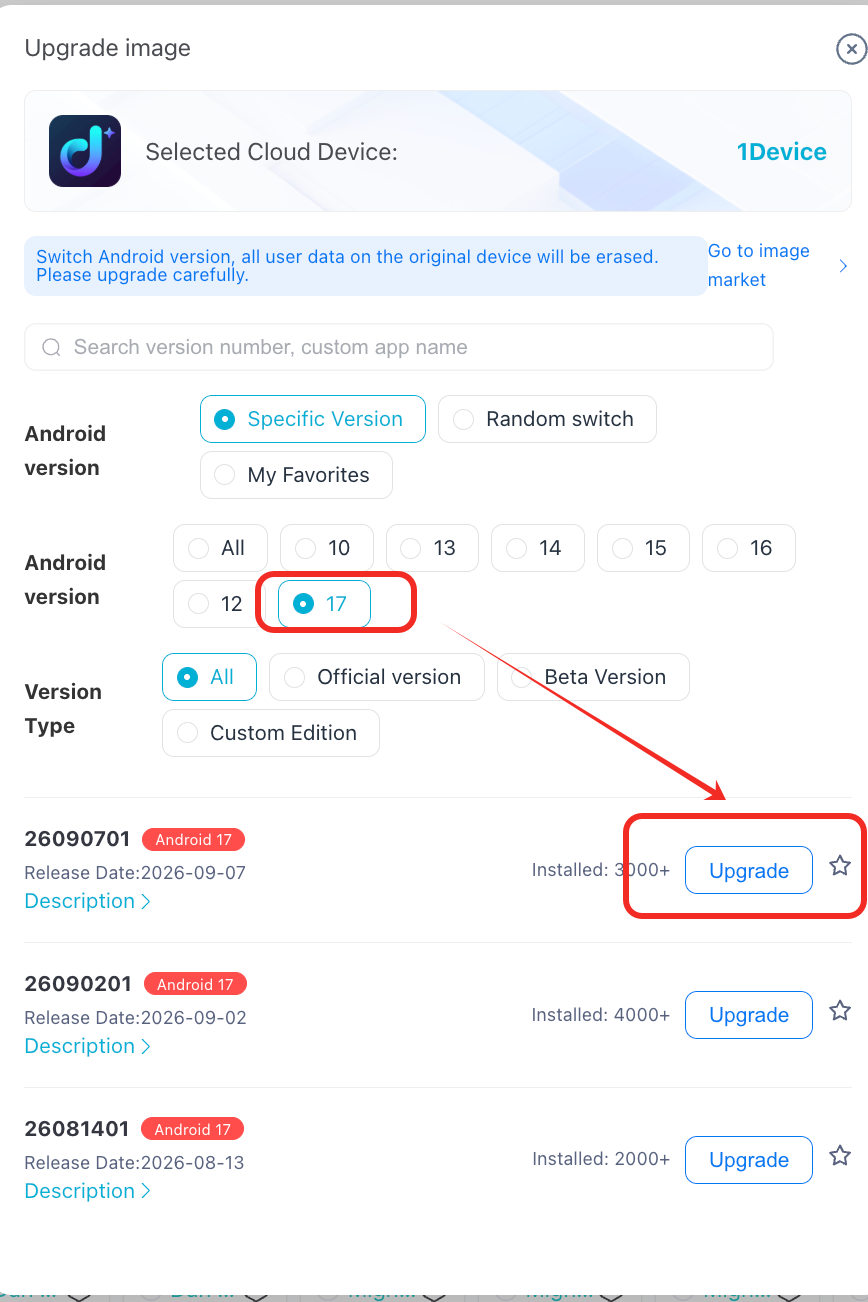
Choose the Android system image you want to use, such as the latest Android 17 image.
Follow the on-screen instructions to complete the upgrade.
Batch Upgrade
To upgrade multiple devices at the same time:
Go to Environment Management.
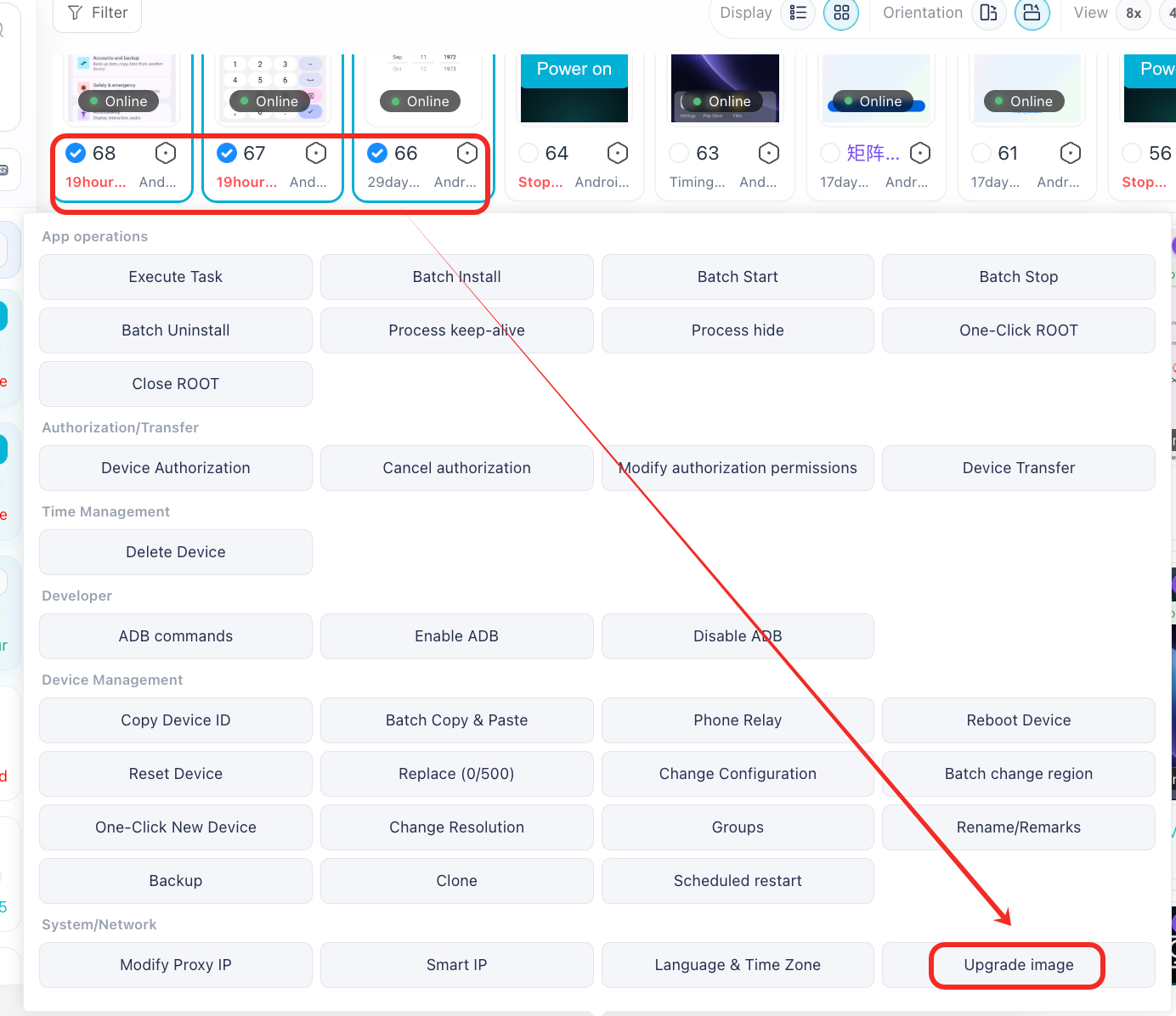
Select the devices you want to upgrade.
Click Batch Actions.
Select Upgrade Image.
Choose the Android system image you want to use, such as the latest Android 17 image.
Confirm the operation and wait for the upgrade to complete.
⚠️ Important Notice Before Upgrading
Switching to a different Android version or system image may erase all data on the device.
For example, upgrading from an older Android image to Android 17 may remove installed applications, account login status, and other local device data.
Before upgrading, please make sure to:
Back up any important data;
Confirm that no data on the device needs to be retained;
Verify that you have selected the correct Android system image;
Proceed carefully when upgrading across Android versions.
If your device contains important accounts or data, make sure to back up everything before upgrading.