【TikSales Getting Started Guide 】
更新于 2026-07-10
About TikSales
TikSales is an AI-powered automation platform built for large-scale TikTok account management and matrix operations.
With intelligent automation capabilities, TikSales enables users to manage the complete TikTok growth workflow — from account registration, account warm-up, and content publishing to performance monitoring — helping businesses efficiently scale their TikTok
operations.
⭐ Build and manage your TikTok account matrix with one powerful AI automation platform.
What This Guide Covers
This guide will help you:
Set up your TikSales workspace
Connect and manage TikTok accounts
Configure automation workflows
Launch your first automated operation process
Scale from single-account management to multi-account growth operations
Product Overview
A. Core Features
TikSales provides AI-powered automation across the entire TikTok operation lifecycle, including:
TikTok account registration and login management
Account warm-up and engagement activities
Automated content publishing
TikTok Shop and livestream operations (loading…)
AIGC-powered content creation
The platform supports flexible workflow combinations, allowing users to build and execute customized automation processes with a single click.
For custom solutions, please contact: support@tiksales.net
Interface Overview
The TikSales dashboard consists of four main sections:
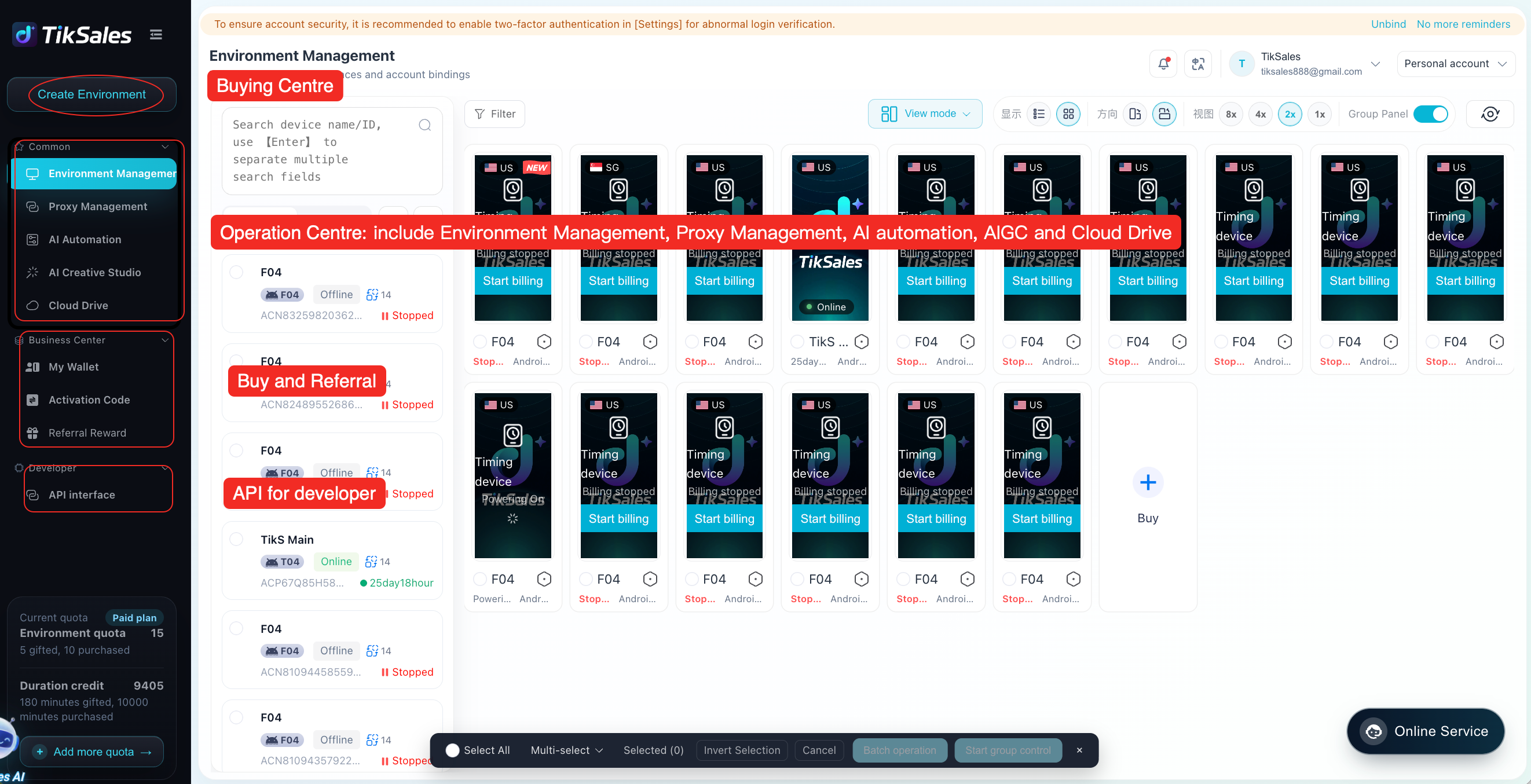
Each section provides access to different operational tools and settings.
Getting Started Workflow
Step 1: Select Your Service Plan
TikSales offers two billing models: Timed Devices (flexible billing, where the number of environments and usage duration packages are purchased separately) and Monthly Subscription Devices (fixed fees with continuous online availability).
| Mode | Billing Method | Suitable For |
|---|---|---|
| Timed Devices | Number of environments + actual usage duration | Test accounts, temporary tasks, and low-frequency usage |
| Monthly Subscription Devices | Purchase by subscription period (1/7/30/90/365 days), with continuous availability throughout the subscription period | Long-term operations, multi-account management, and high-frequency usage |
Free Trial — New users can receive the following benefits upon registration:
5 Timed Device environments + 2 hours (shared usage duration)
10,000 AIGC credits
Step 2: Configure Proxy Settings (Required for TikTok Operations)
TikTok operations require a stable IP environment.Please complete the proxy configuration while the environment device is powered on.
The overall proxy binding process is: Environment Power On → Proxy binding
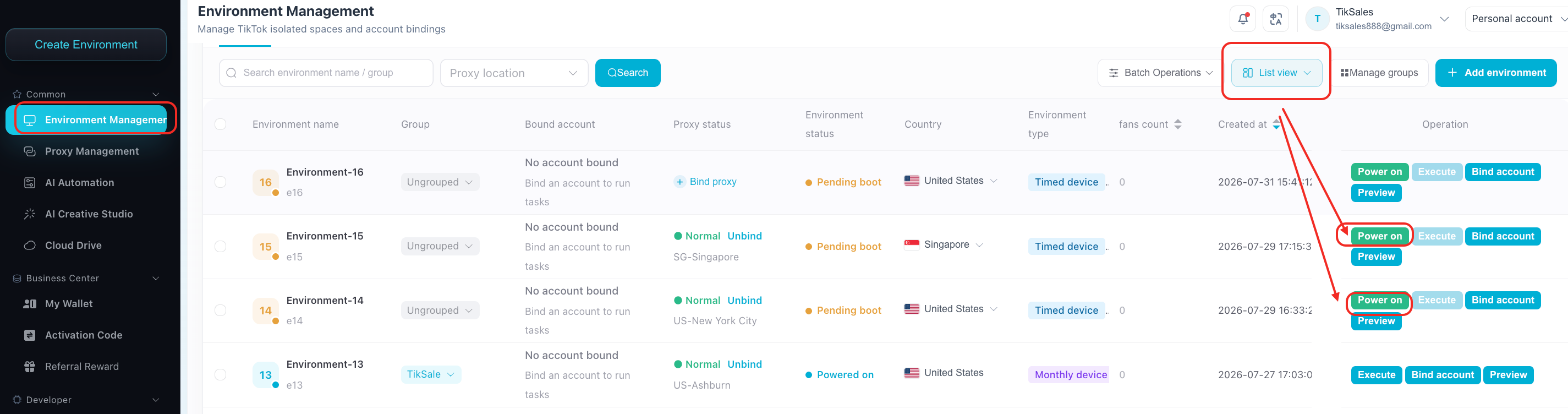
TikSales supports:
Using your own third-party proxy providers
Purchasing IP proxies directly through the platform
Configure Your Existing Proxy
If you already have proxy resources:
- Navigate to: 【Proxy Management】 → 【Add Proxy】
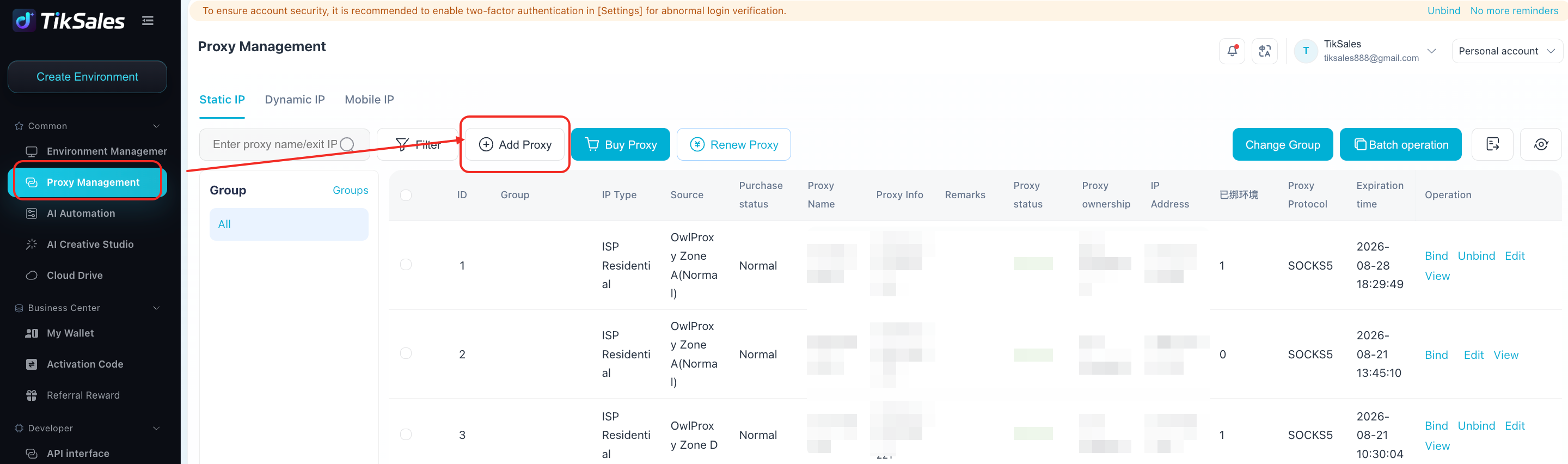

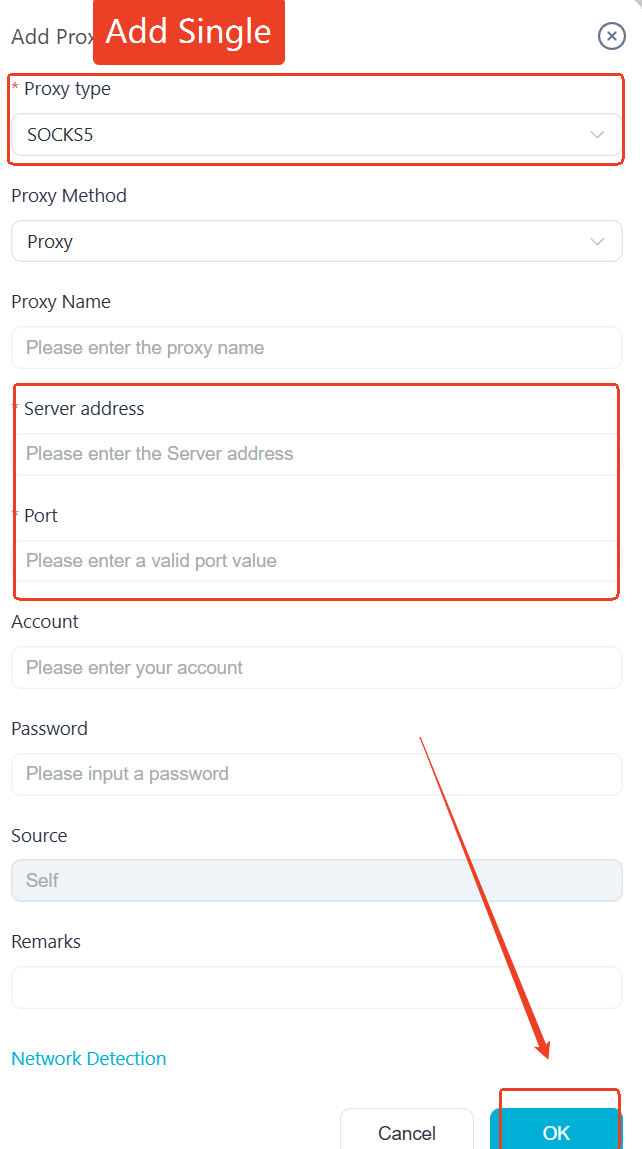
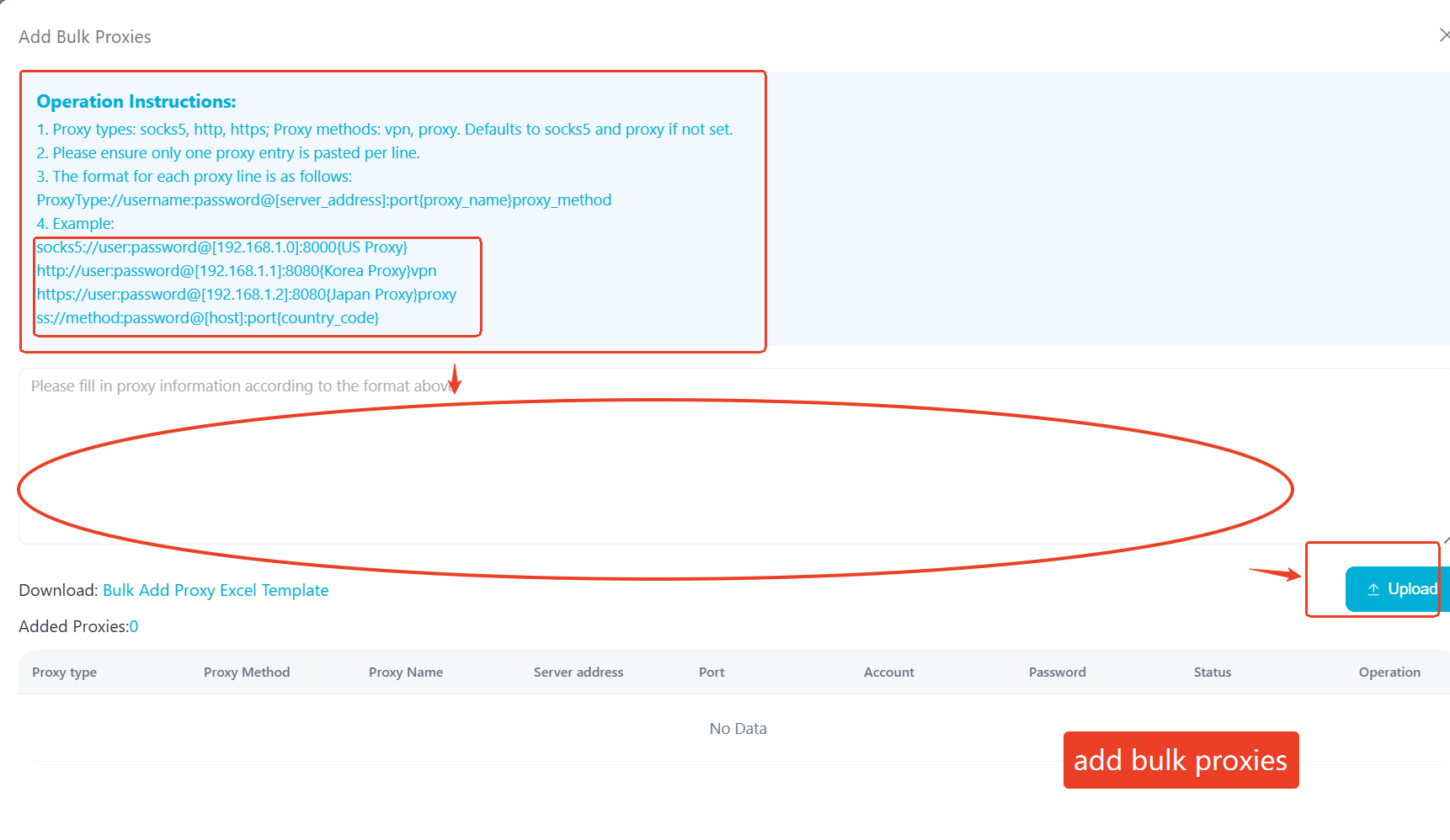
- After adding the proxy, click the 【bulk operation】 - 【One-click detection】, then complete the setup by selecting:
Bind
or
Batch Actions → Batch Bind
If you need to purchase proxies:
- Click: 【Buy Proxy】, then choose the one proxy you need.
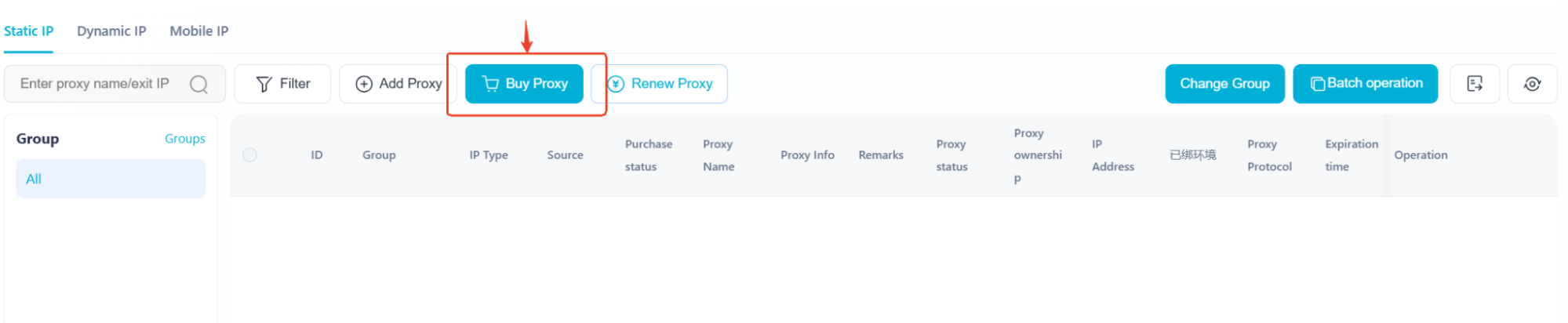
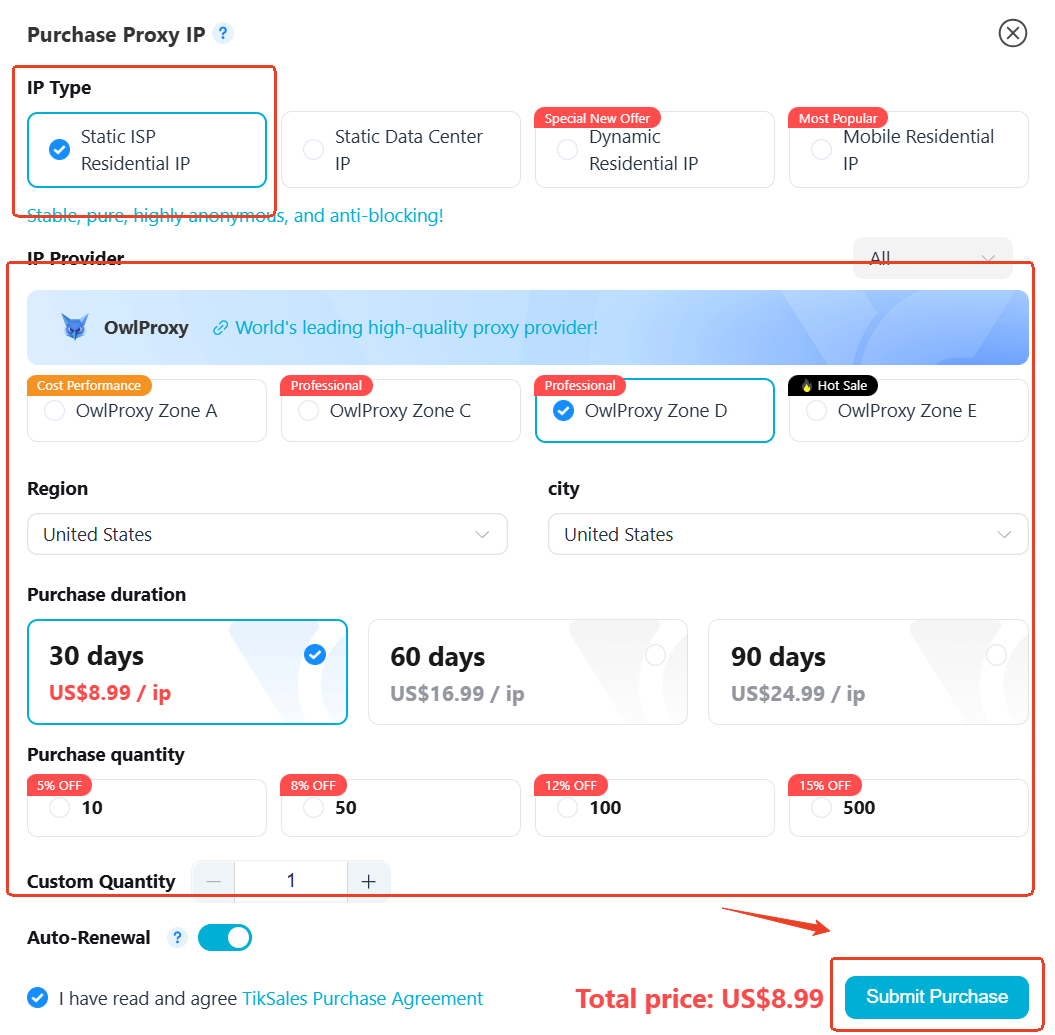
- After completing the purchase, return to TikSales and bind the proxy to your environment.
Recommendation as above.
For TikTok operations, static residential proxies are preferred for better account stability.
Step 3: Register or Import TikTok Accounts
A. Register New TikTok Accounts
If you have account registration resources, including:
Email accounts
Phone numbers
Google accounts
2FA authentication keys
SMS verification services
you can import these resources into TikSales for automated account registration.
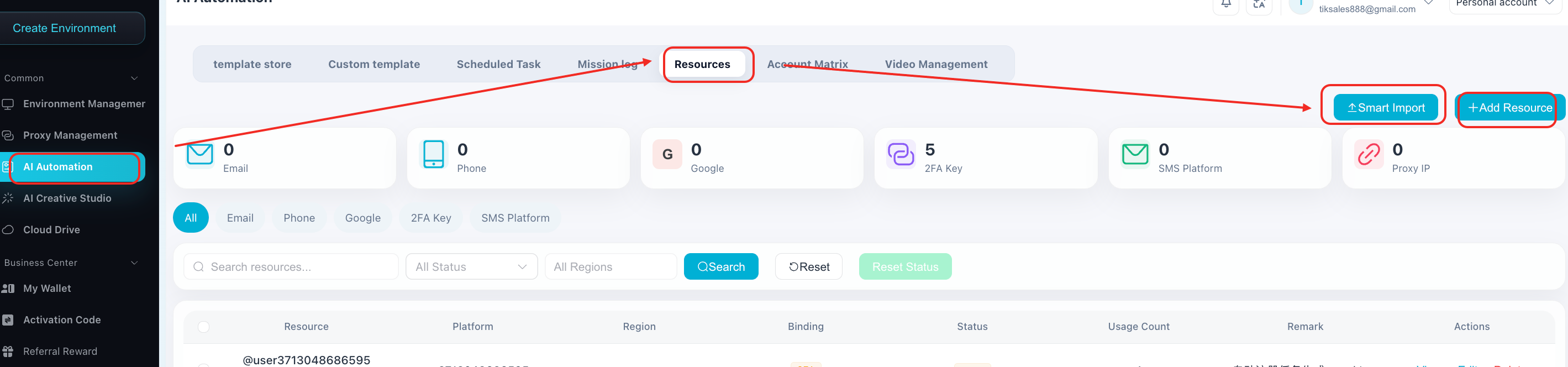
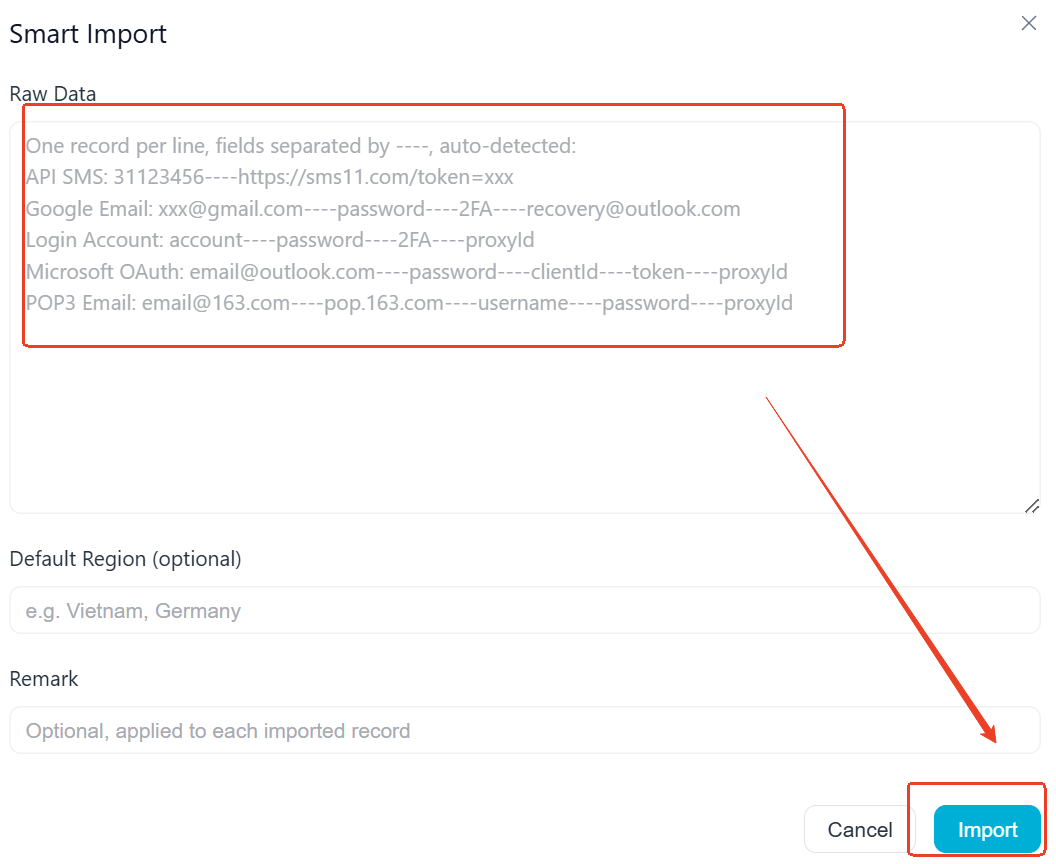
Automated TikTok Account Registration
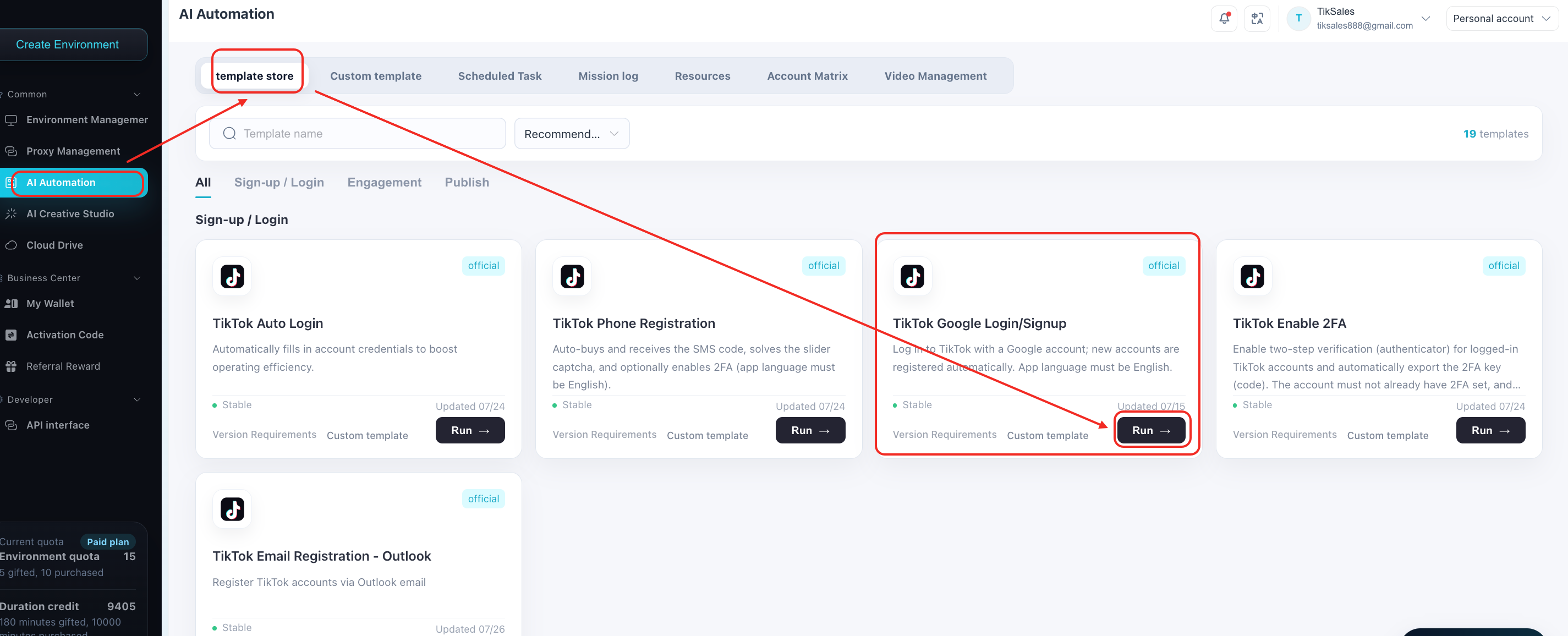
Take TikTok Google Login/Signup as the example:
Select the corresponding automated task, then click 【RUN】 → Select the environment that is powered on → Select or enter the registered resource.
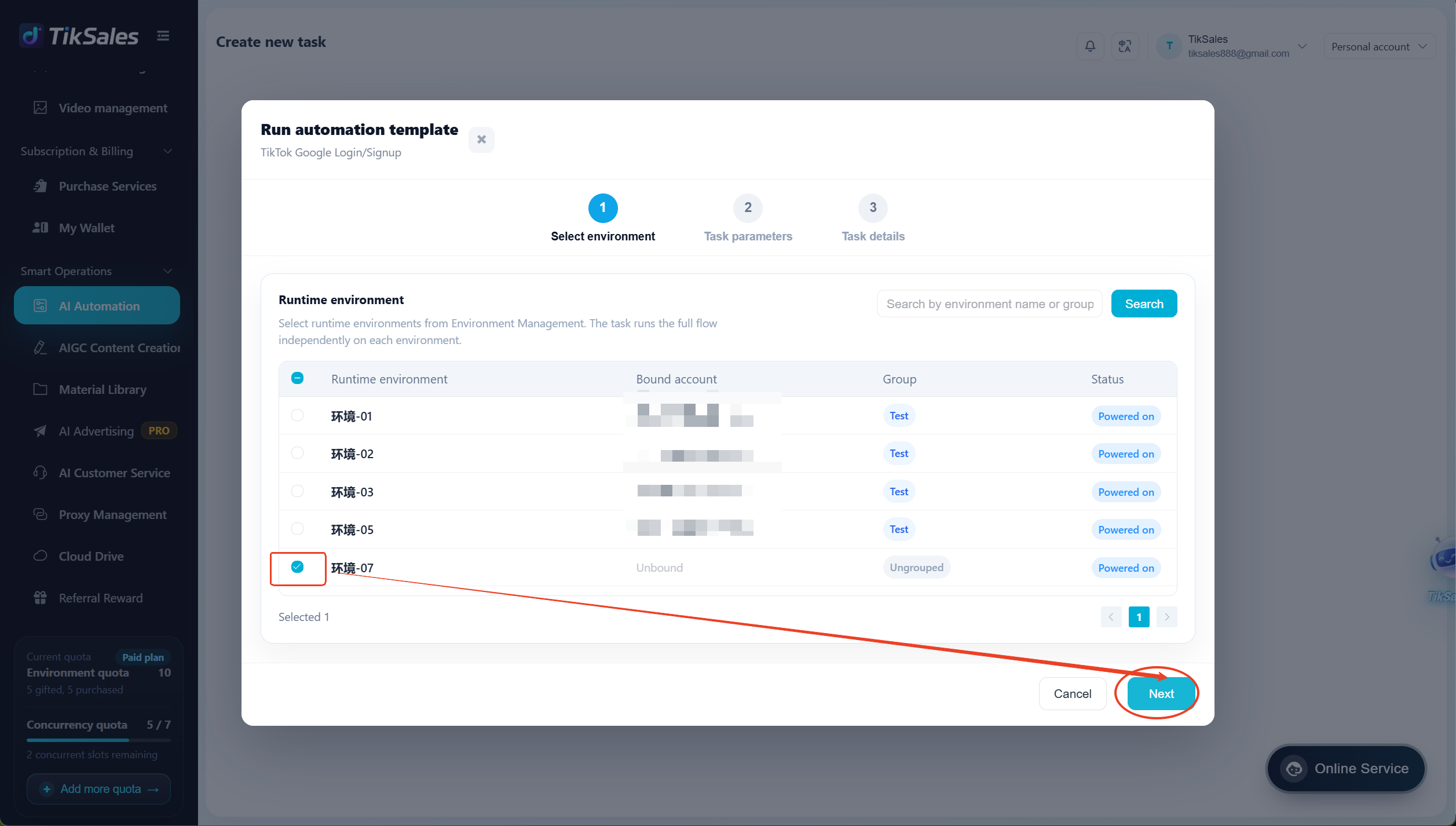
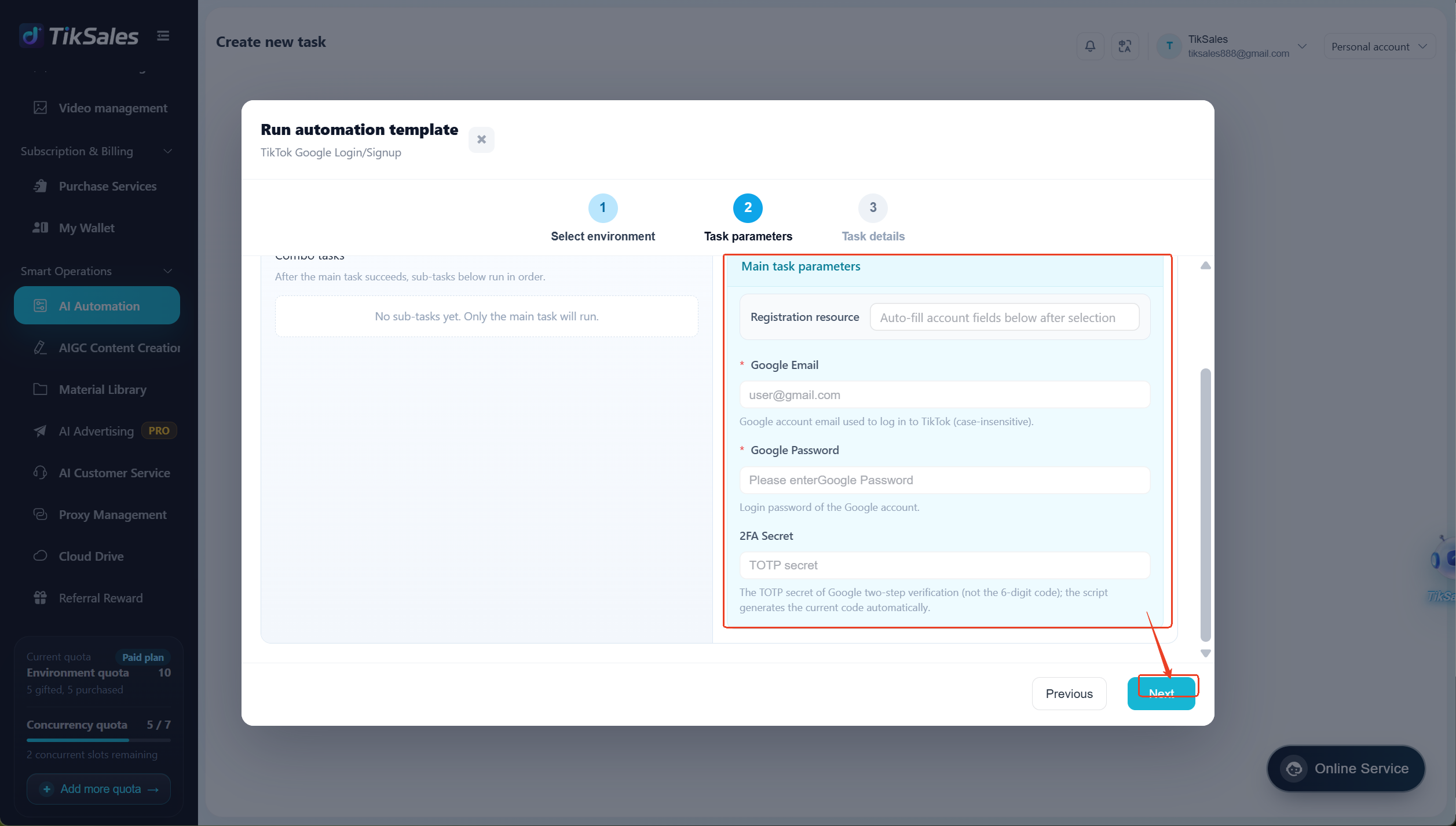
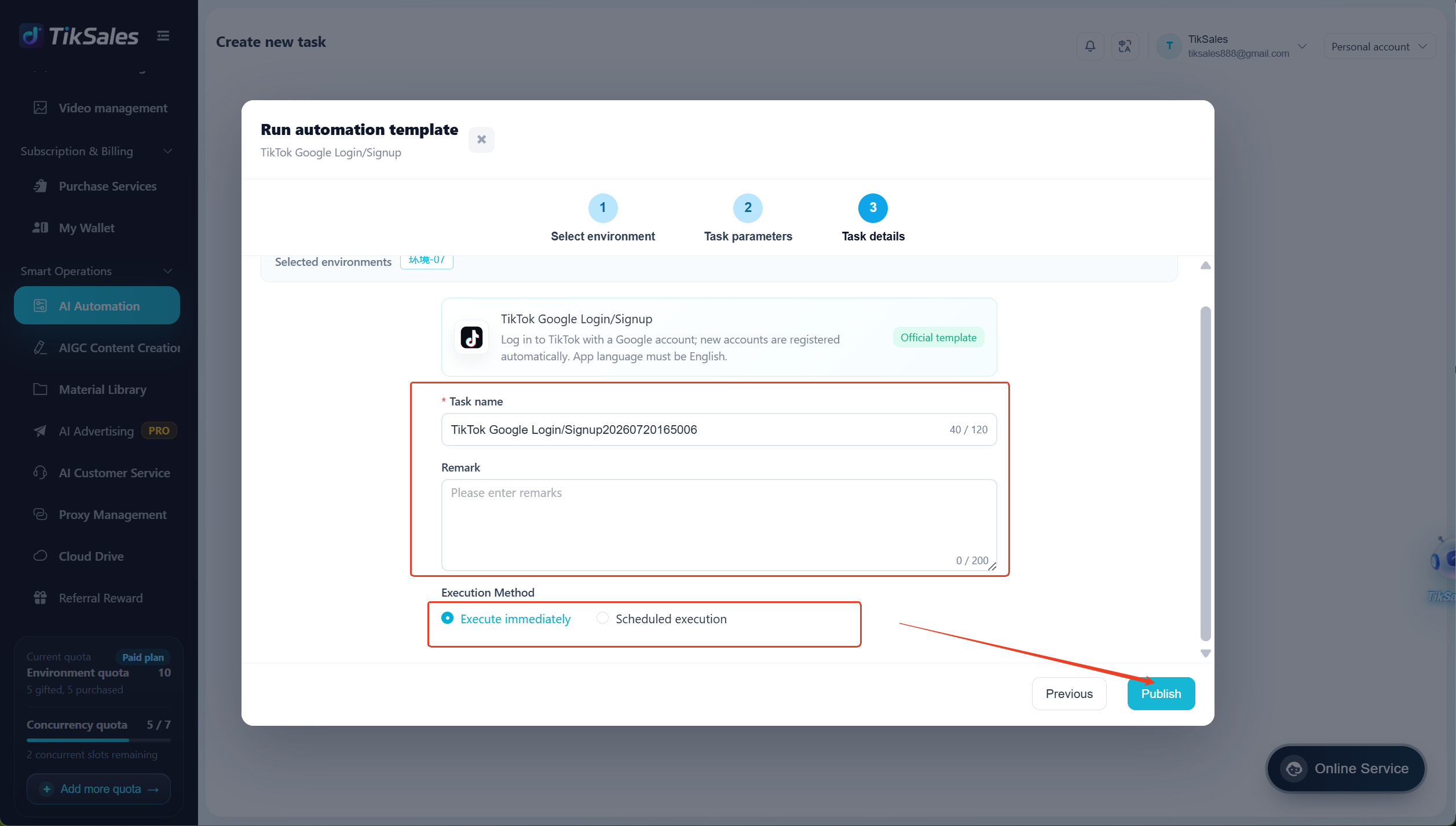
Once registration is completed, the account will automatically appear under: Account Management
B. Import Existing TikTok Accounts
To add existing TikTok accounts:
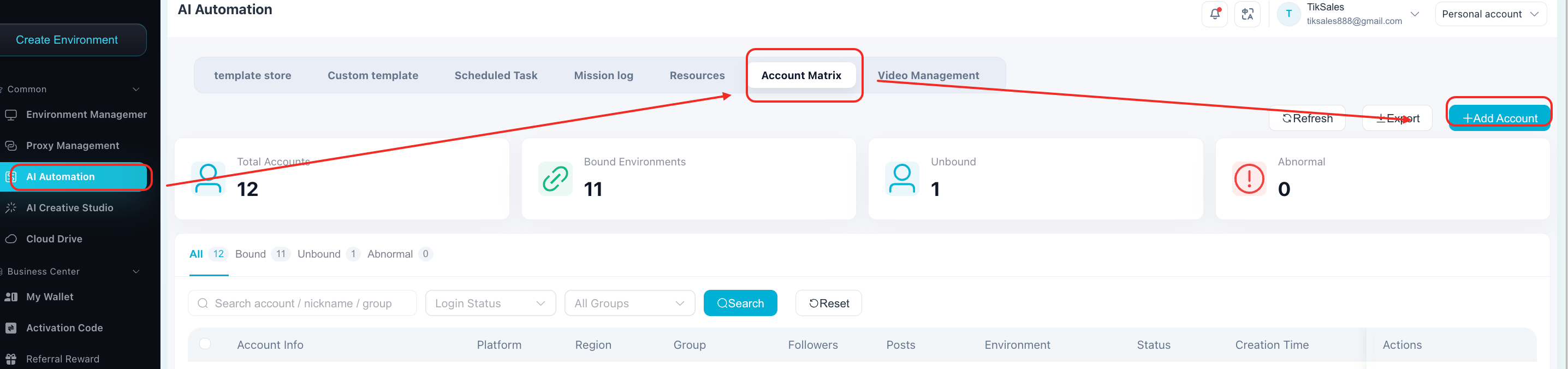
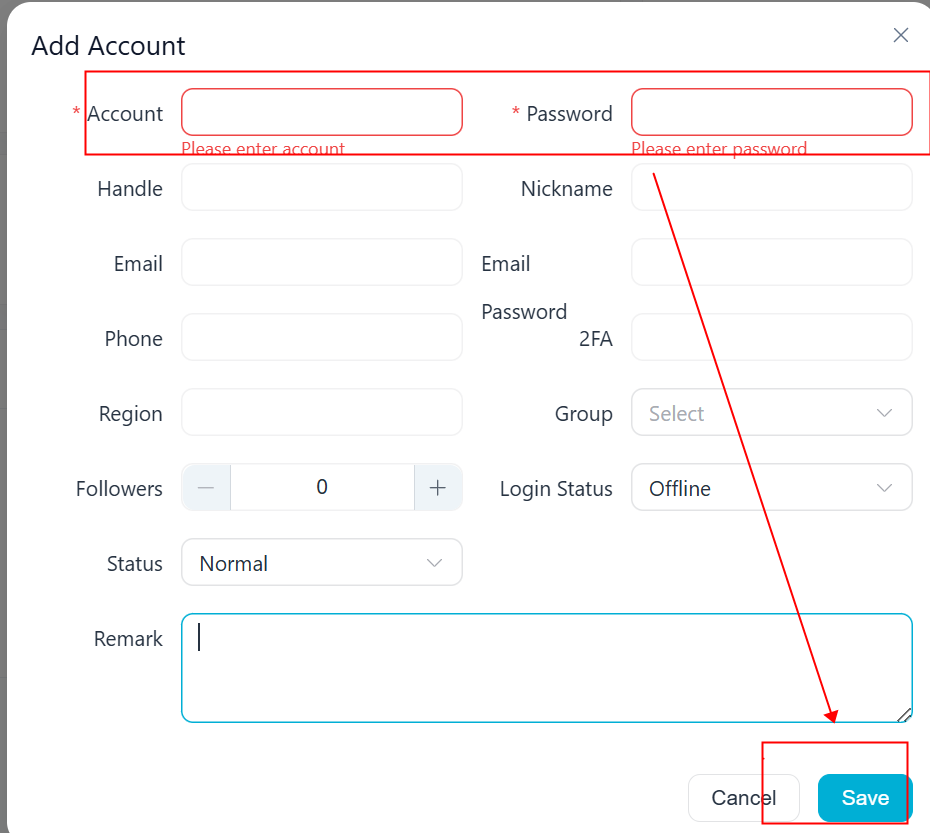
Go to: AI Automation → Account Matrix → Add Account. Follow the instructions to import your accounts.
C. Bind Accounts to Environments
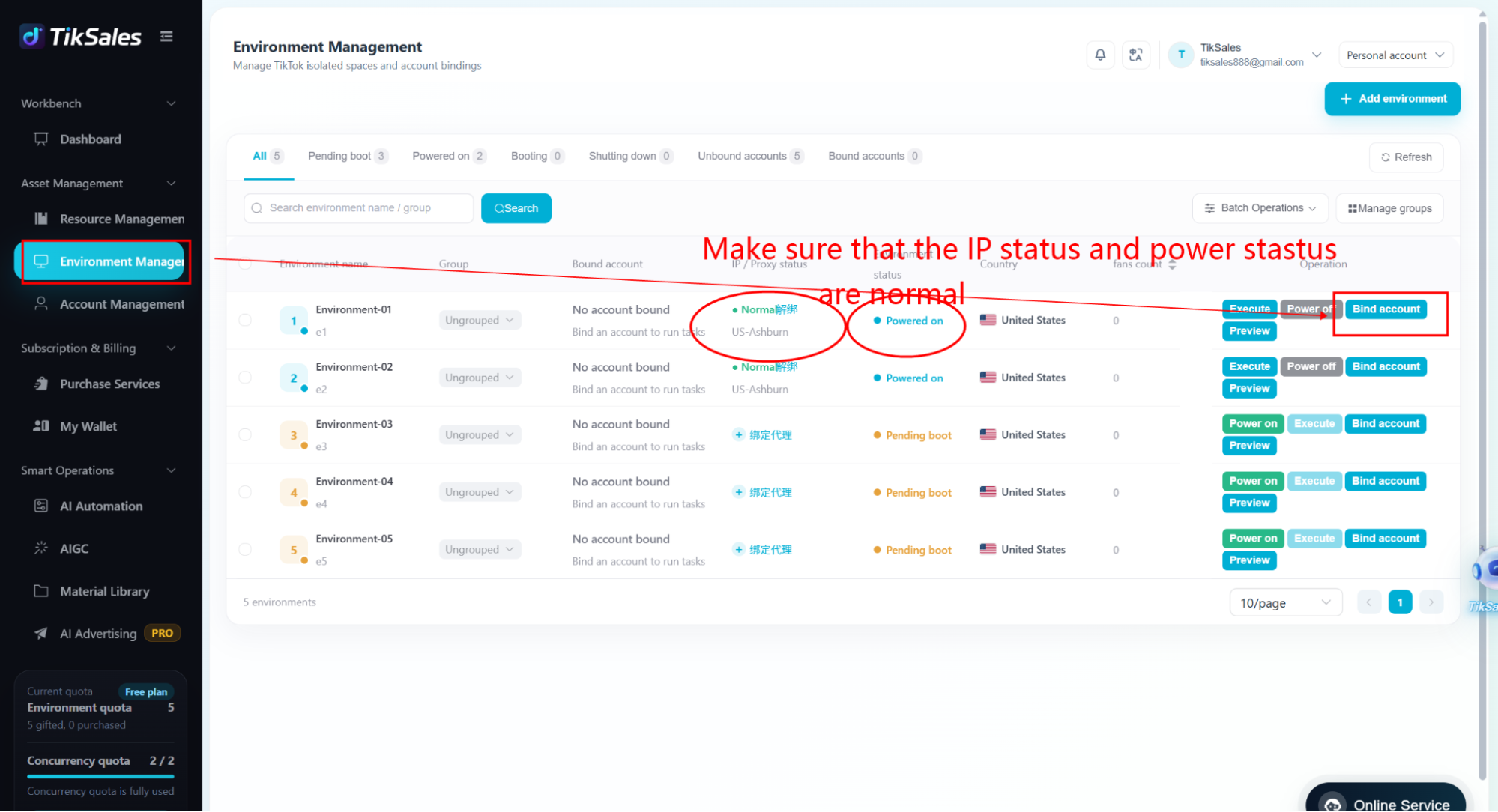
Go to Environment Management -> Select an available environment and click:【Bind Account】 to associate the TikTok account with its dedicated operating environment.
Step 4: Create and Run Automation Workflows
Example Workflow:
Login → Update Profile → Account Warm-Up
TikSales workflows are built using a combination of:
Primary Tasks
Follow-up Tasks
Primary Task
The Primary Task is the starting point of your automation workflow.The system will execute this task first.
Follow-up Tasks
After the Primary Task is completed, Follow-up Tasks will execute automatically in the configured sequence.
Create Your Automation Workflow
Navigate to:
Environment Management -> Choose the Environment [has been powered on] → click Execute
Select the first automation module.
The selected module will automatically become the Primary Task.
Choose the target environment and configure task parameters.
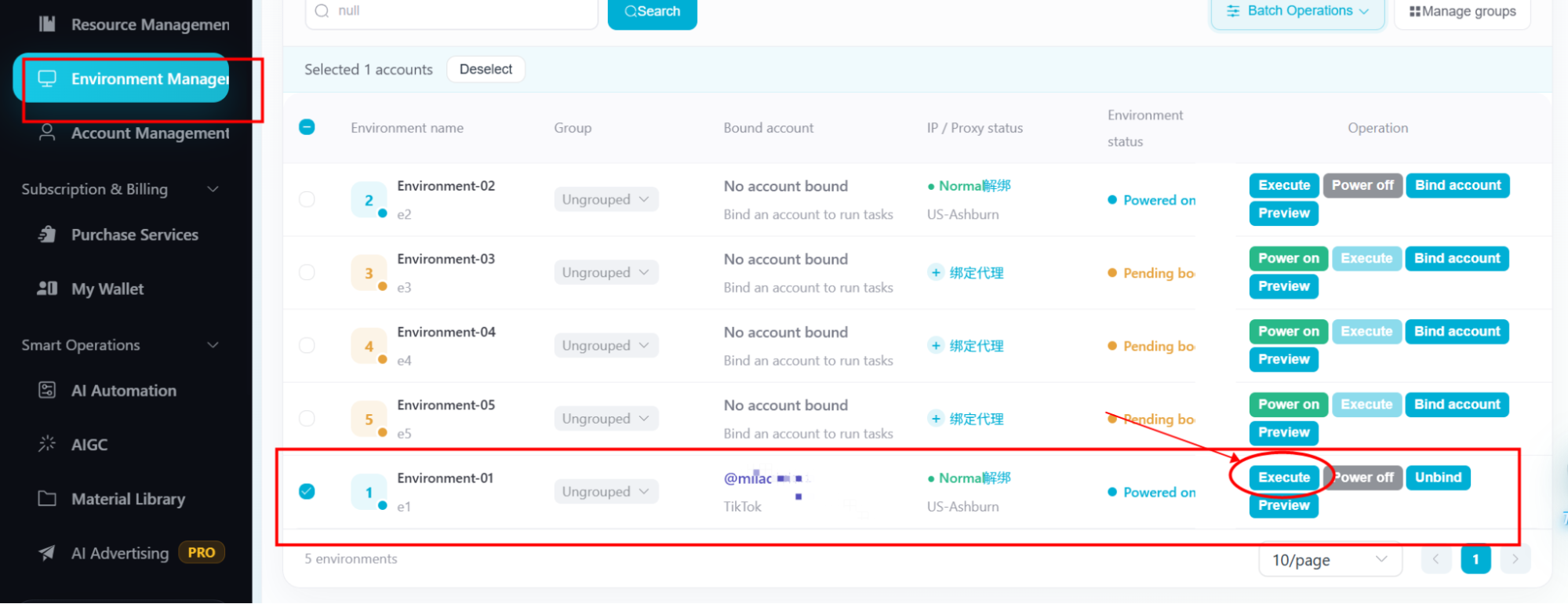
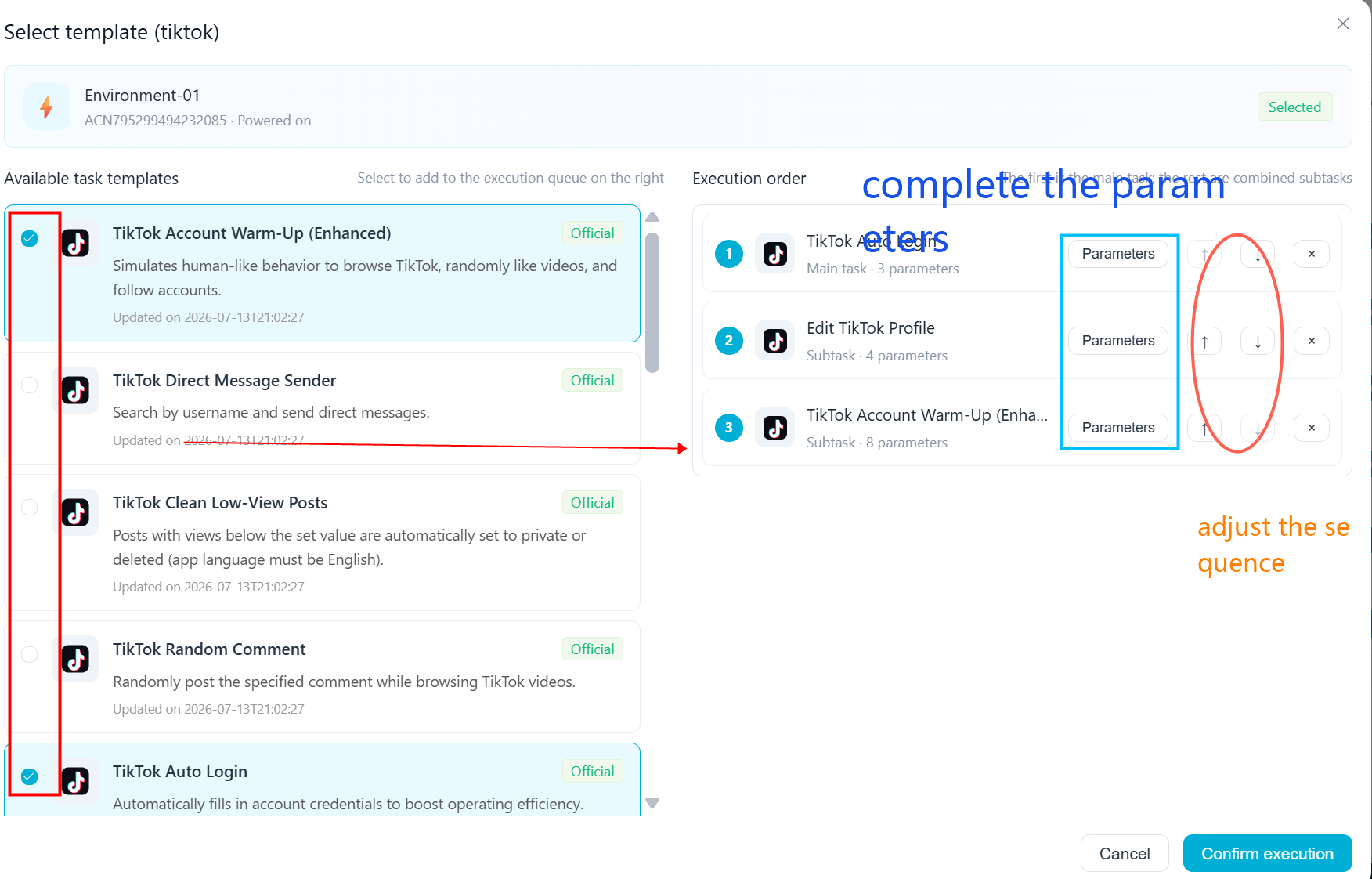
After completing all configurations, click【Confirm execution】 to activate the workflow.
Task Management Notes
All the mission log can be checked on 【AI Automation】-【Mission Log】
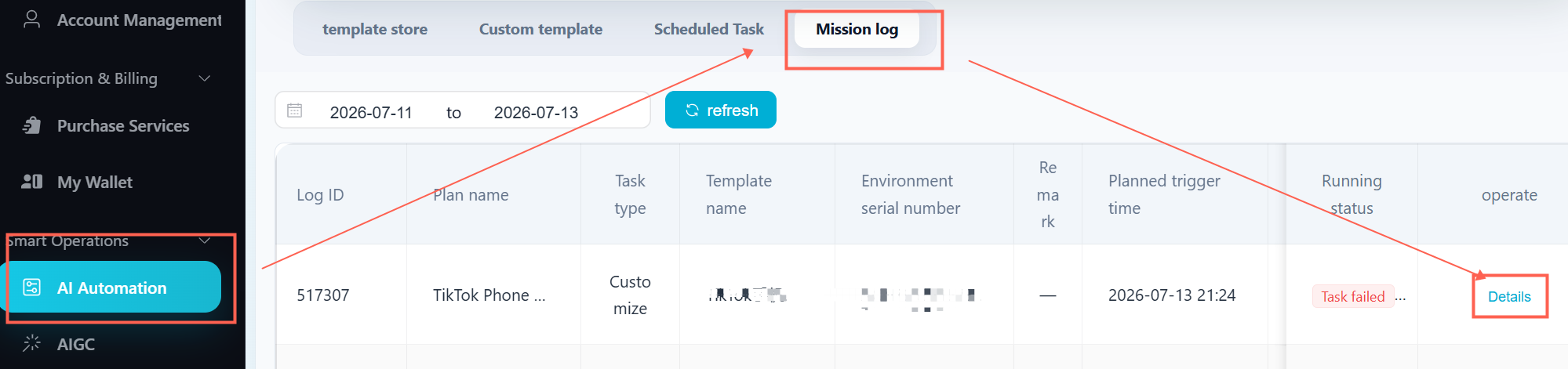
Unstarted tasks can be edited or deleted from 【AI Automation】-【Scheduled Task】.
Execution details can be monitored through Task Logs.
TikSales continuously releases new capabilities, including:
TikTok Shop product link integration
Automated livestream operations
Multi-platform account automation
For customized requirements, please contact the TikSales support team.